

3.1.1.Central administration login
The user can log in to the Central Administration only if they have the Manage tenant and/or Manage system permissions. For more information, see the Roles section.
There are 3 ways to open the contentACCESS Central Administration:
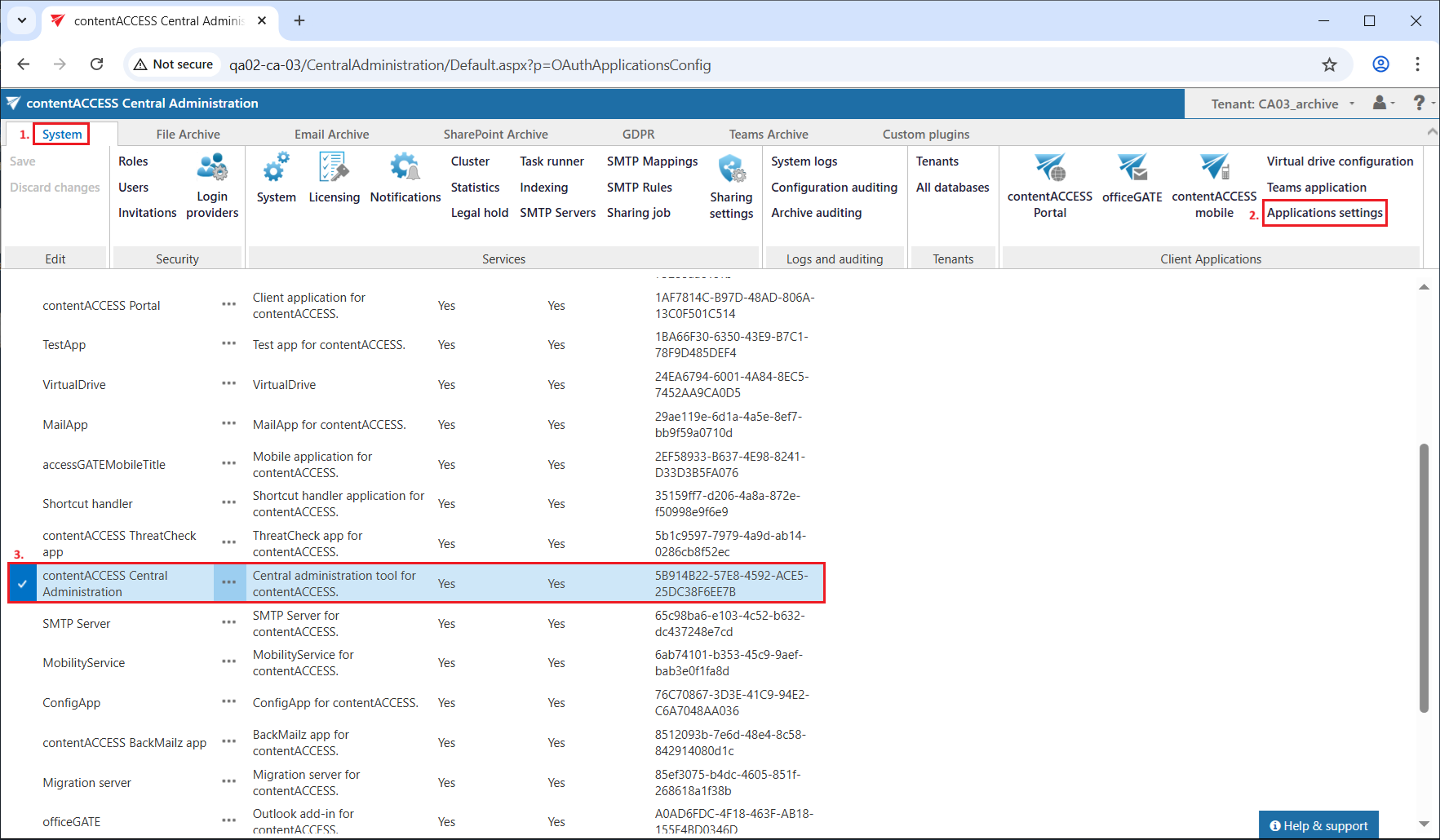
- Standard login: using the standard Central Administration URL, which is set and can be modified in the Application settings:
http(s)://[ServerName]:[PortNumberOfCentralAdministration]/CentralAdministration
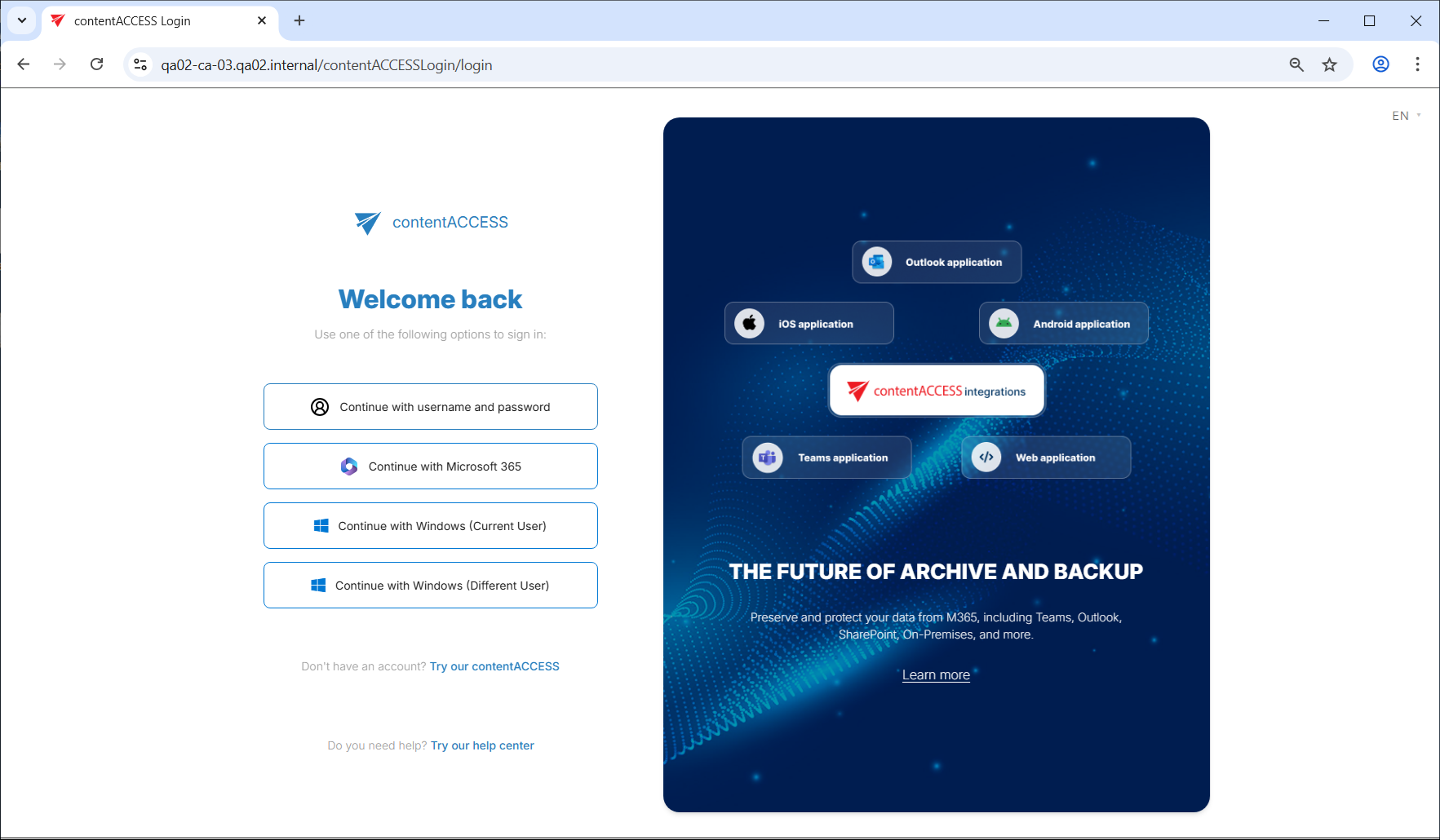
- From the central login page: http(s)://[CentralLoginServerName]/contentACCESSLogin – this page is installed by the contentACCESS setup (see Installation of contentACCESS). The URL is set/can be modified on the System => Services => System page of Central Administration (in the Application settings it’s read-only). Opening this URL automatically redirects to the login page: http(s)://[ServerName]/contentACCESSLogin/login
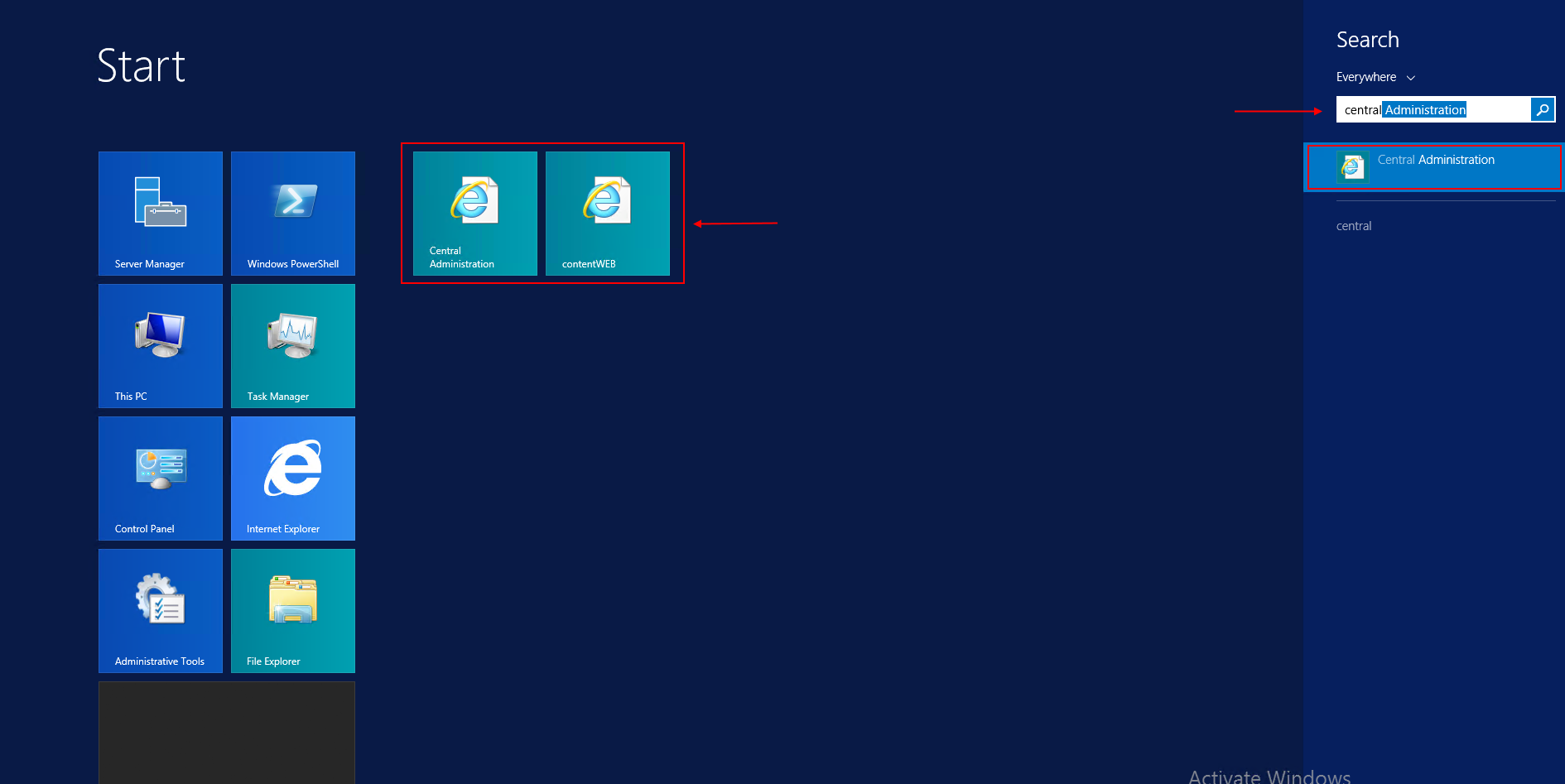
- Windows start menu: On the server where Central Administration is installed, open it by typing “Central Administration” in the Windows Start menu or by clicking the corresponding icon.
This option also opens the central login page and redirects to: http(s)://[ServerName]/contentACCESSLogin/login
Log in either with:
- a contentACCESS account (Forms login provider) or
- any of your external login providers (Forms, Windows, Microsoft account etc.) if they are configured in the Central Administration (more in section “Login providers”).
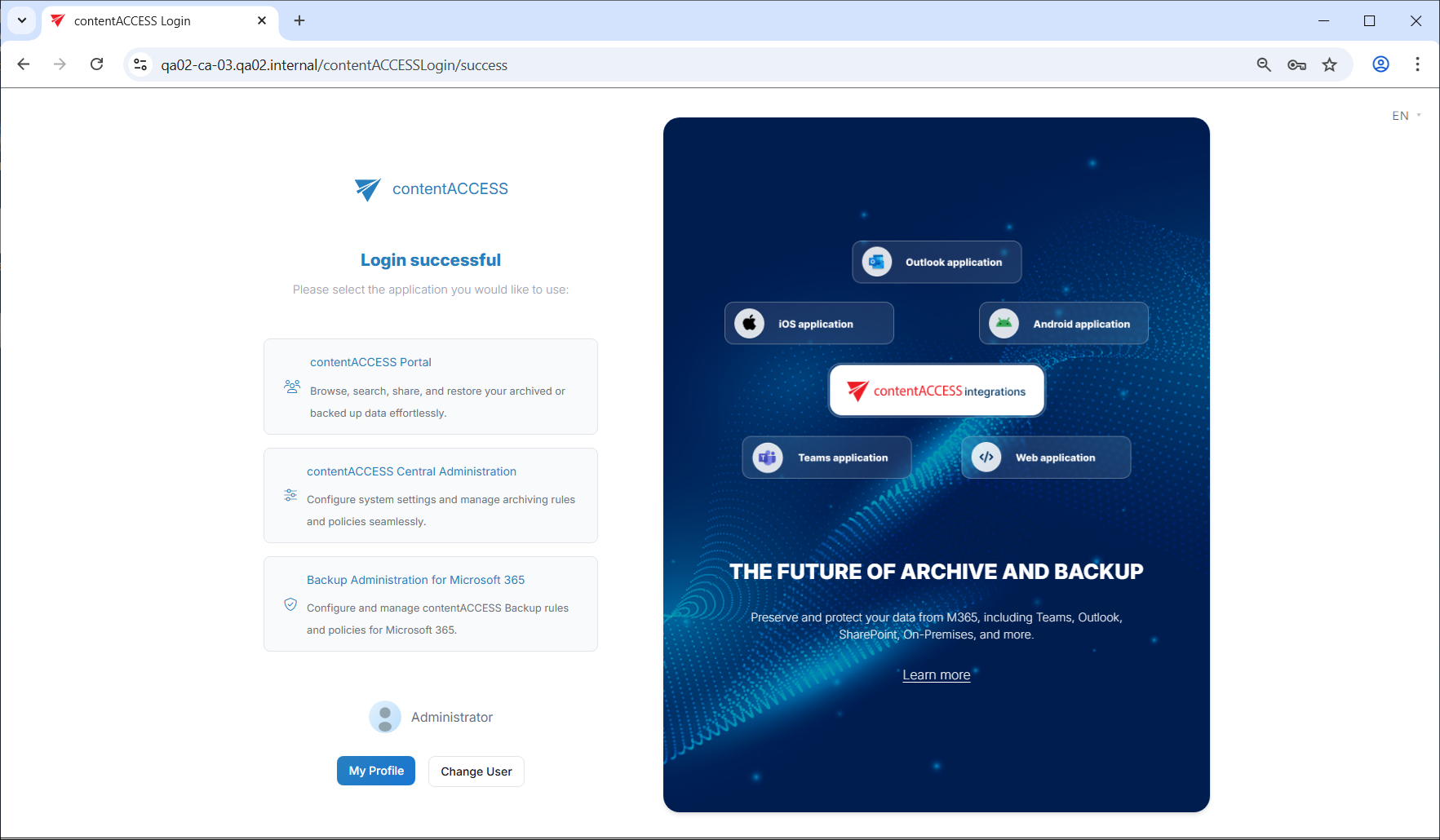
After a successful login, the logged-in user is displayed. The applications available to the user are shown on the page under the user name.
- Click contentACCESS Central Administration to access the administration interface; the central login page will redirect you to the application.
- By clicking contentACCESS Portal, you can log in to the archive, provided you have the necessary permissions.
- By clicking Backup Administration for Microsoft 365, you can access the backup administration interface, if you have the required permissions.
Note: If you use Chrome, it is recommended to turn the password saving off. Learn more here about how to turn it off.
When logging in to contentACCESS Central Administration for the first time, use the system administrator password defined during installation on the Options tab.
Important: It is highly recommended to change this internal system account after the first login immediately.
For more information on how to enable further external login providers, please refer to section Login providers.
Note: Central administration remembers the last accessed page of the user and will automatically navigate back when logged on again. The same rule applies to tenant settings. Central Administration will log in under the tenant which was last selected.
Help Guide Powered by Documentor