
3.6.Central login page
The Central login page is a separate component that’s also a part of the contentACCESS installation package. It can be deployed on the machine where the contentACCESS server is deployed, or also on any other server, separately from other components.
The Central login page is a must-to component that enables to use the third-party login providers and also social login providers like Windows, Google, Microsoft 365 etc. – i.e. the user can log in to the respective application using his Google, Microsoft 365, Windows etc. account only from this page:
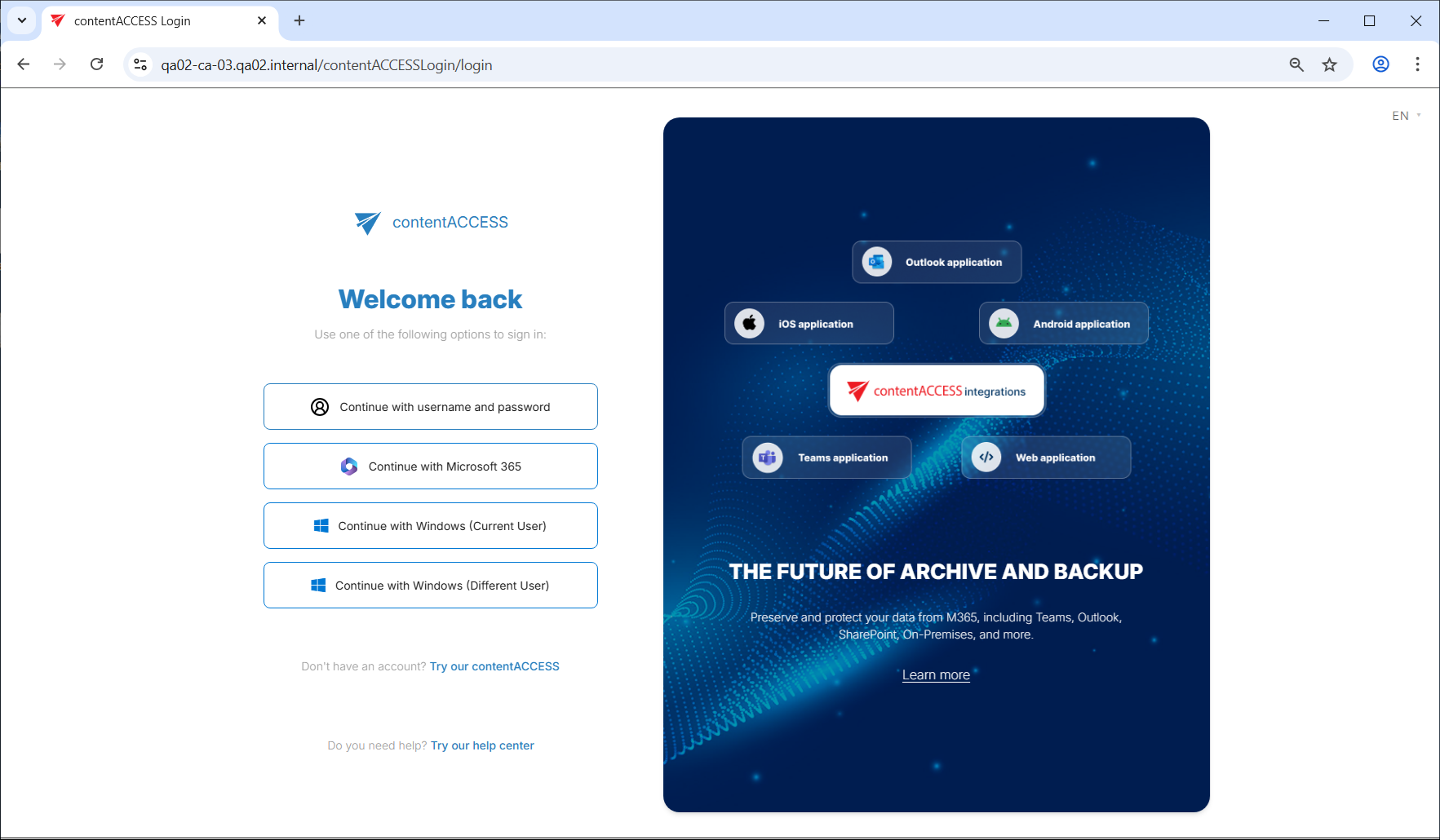
The component is using a standard OAUTH protocol, i.e. any other client application, which is able to authorize through the OAUTH, can be also authorized by contentACCESS.
Central login page features:
- Long term login: using the “Remember me” option, the logged-in user is remembered for up to 3 months-This ensures that the user is not required to log in every time they access the application
- Disabling application(s): by disabling login to contentACCESS from that/those application(s): e.g. by disabling officeGATE but leaving contenACCESS Portal enabled the company allows for the end user to browse the contentACCESS archive through contentACCESS Portal only, but in officeGATE the connection with contentACCESS will be disabled for that contentACCESS installation (read more in section Application settings)
- Social authentication support: (Google, Facebook, Microsoft 365 – Important!: You still need to register yourself on these social providers; read more in External login provider configuration)
- Automatic login provider (single sign on): the central login page first tries to authenticate the user who tries to log in with login provider which is set to automatic; the user is automatically redirected to the desired application if the authentication was successful (read more in contentACCESS Automated single sign on)
- User invitation support
- Language selector: the login page includes a language selector. Currently supported languages are: English, German, Hungarian, and Slovak
- Don’t have an account? Try our contentACCESS link: located below the login providers, and clicking this link redirects the user to the TECH-ARROW store, where they can learn more about available products
- Do you need help? Try our help center: provides access to the documentation, and users can interact with the AI assistant for additional information
Additional features on the central login page:
After login, the user is either automatically redirected to Central Administration or the or the other applications (if they were previously working there and the URL still points to it), or redirected to the Login Successful page, where the application available to the user are displayed. At the bottom of this page, the logged-in user is shown along with actions: My profile and Change user.
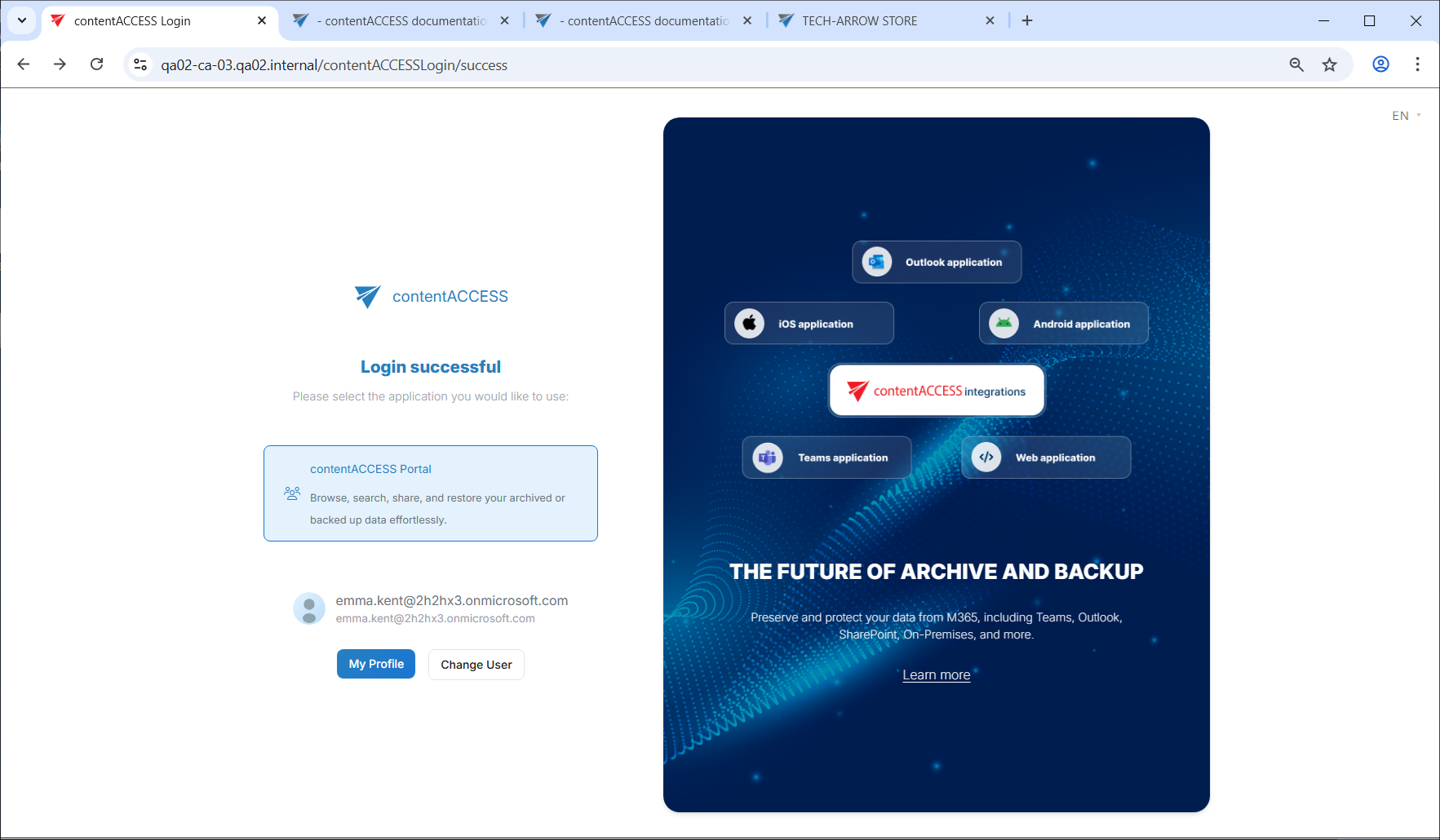
The Change user button logs out the currently signed-in user and redirects back to the main login page.
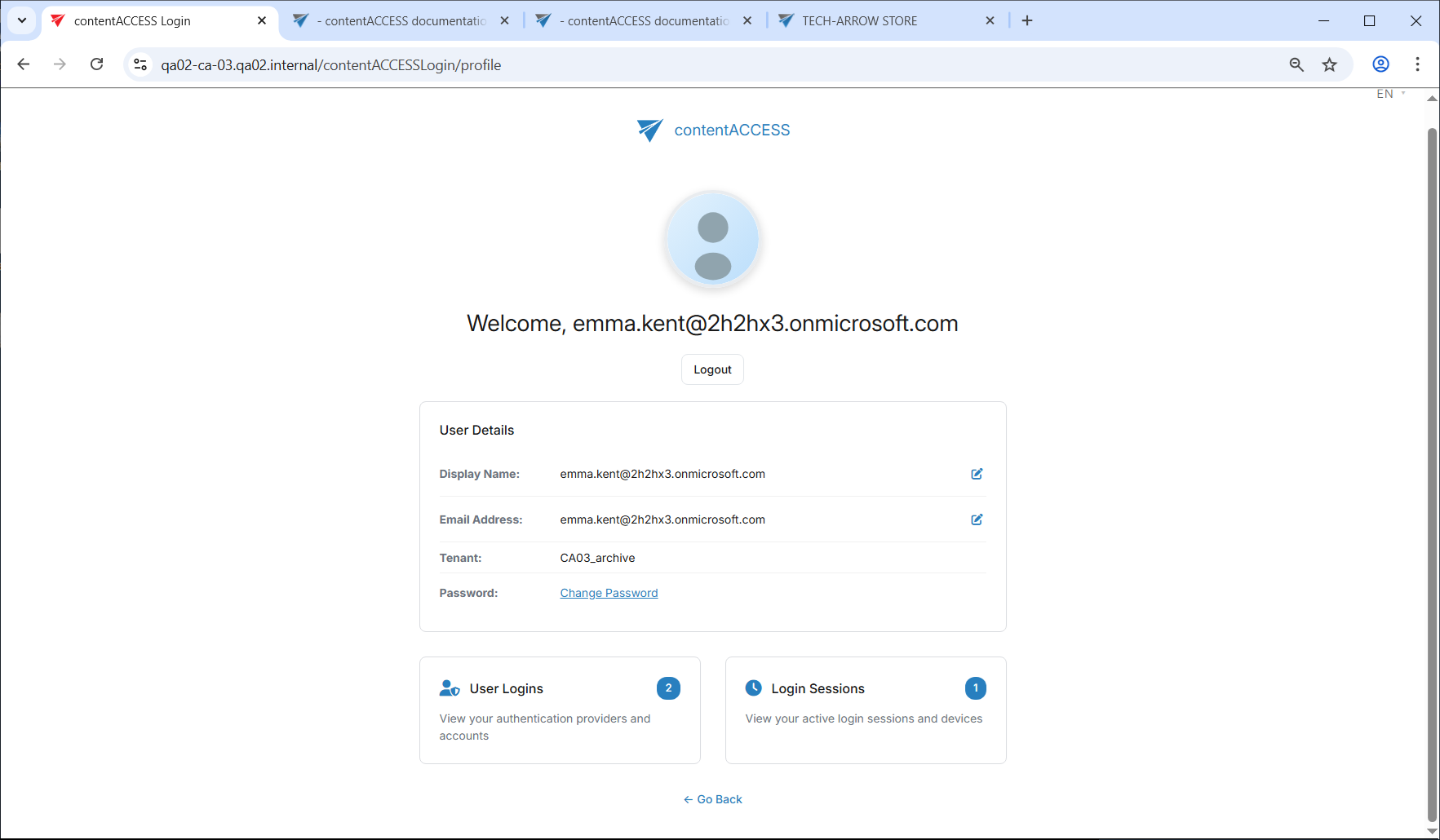
The My profile button opens a page with three sections:
- User details – basic information and the option to change the password
- User logins – view associated authentication providers and accounts
- Login sessions – view active sessions and devices
Central login configuration:
The Central login page is accessible at the following address:
http://[CentralLoginUrl]/contentACCESSLogin
The physical port of the page in IIS, the application URL settings of the Central login page and the connection settings between the Central login page and the contentACCESS server are configured at the first install of the product, and are written to the database by the setup package. These values can be changed:
- by updating the product;
- on the System page of the Central Administration.
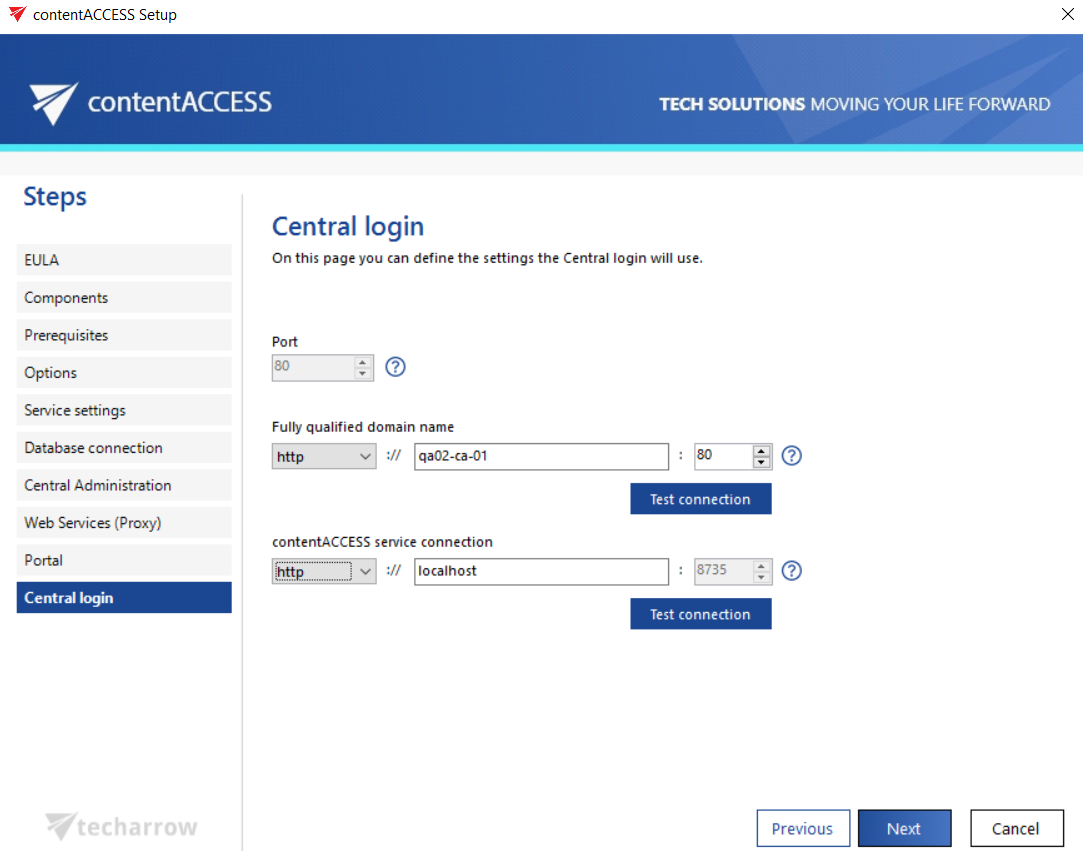
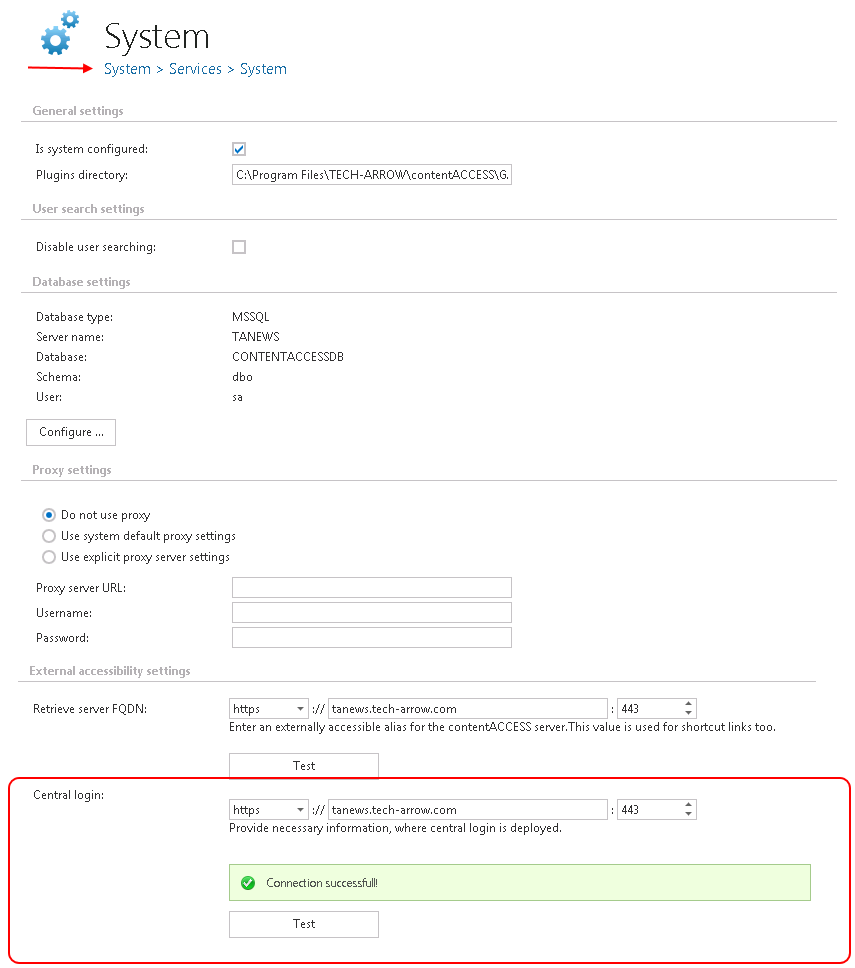
When configuring the application URL for the Central login page, it is highly recommended to create an alias and to specify it in FQDN form to ensure a trouble free access from everywhere.
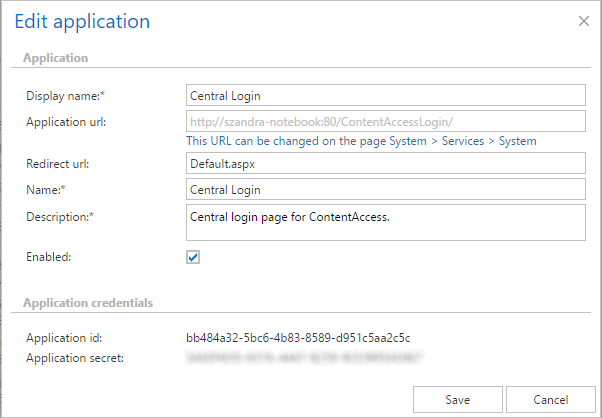
The Applications settings allow to configure certain Central login page settings as well, but the Application URL cannot be changed from here. The URL is written here by the setup package as well, but it can be changed only on the System page (System => Services => System):