

2.1.2.2.6.Database connection
The next step is to specify the system database server to be used by contentACCESS. contentACCESS is storing data in either MS SQL server or PostgreSQL. To continue with the installation process, you will first need to install MS SQL server (2012 or newer version) or PostgreSQL, or use an existing SQL server/PostgreSQL installation.
In case of PostgreSQL, if you use an existing database, you will need to provide the username and password. If you create a new database, the installation process will create the database user and generate the password automatically.
Configuring MSSQL database or PostgreSQL database
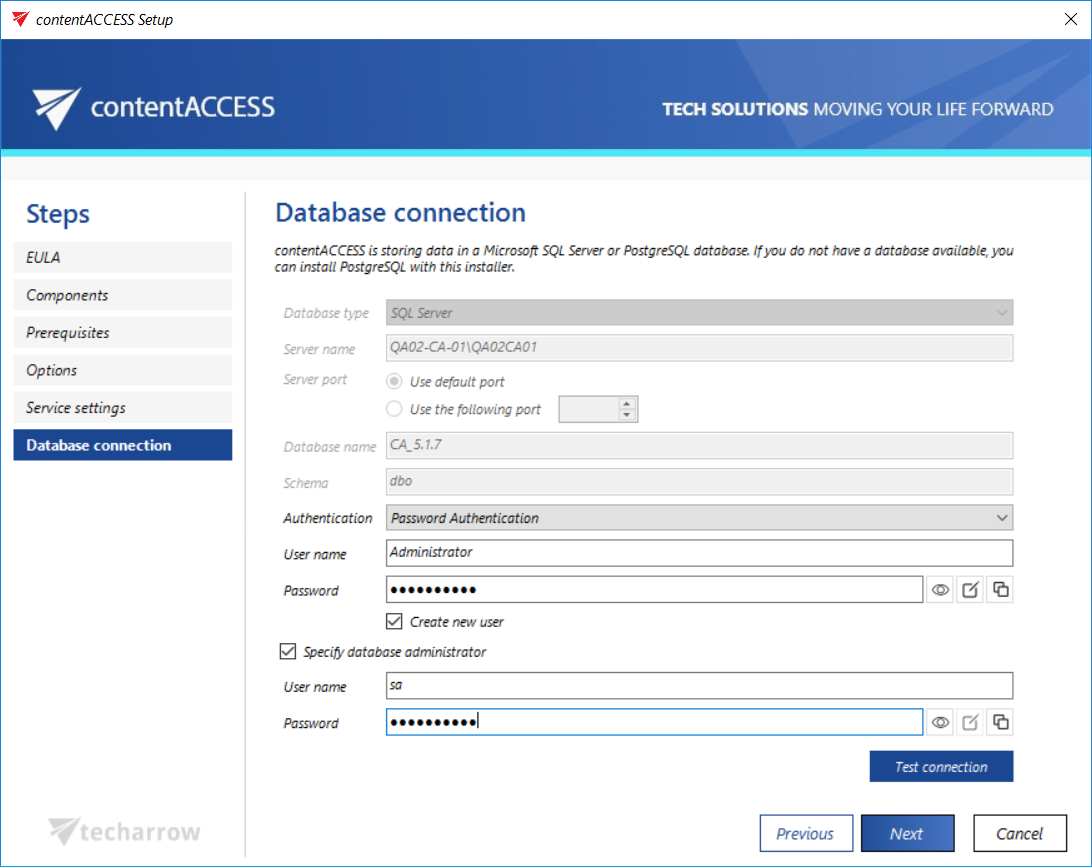
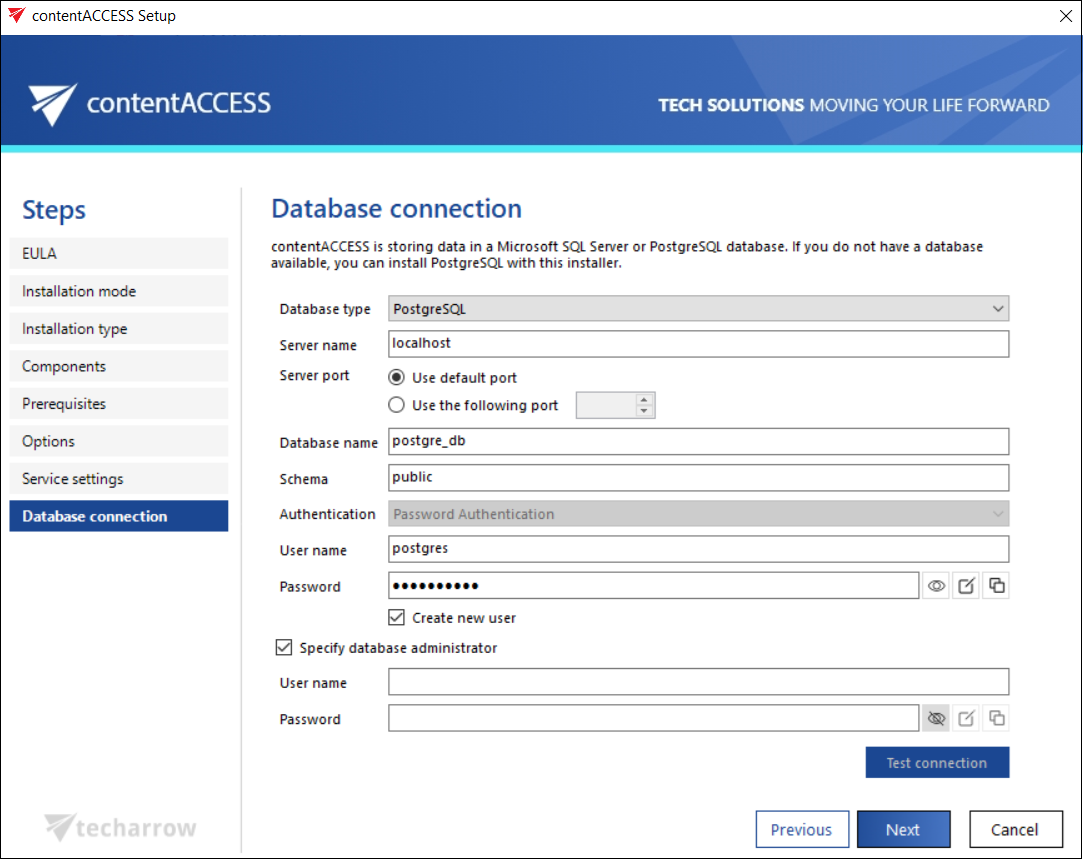
Once you have selected from the dropdown menu which database type will be used by contentACCESS (PostgreSQL or MSSQL), the following parameters must be provided:
Database type: select the database type you want to use from the dropdown menu: SQL Server or PostgreSQL.
Server name: The name or IP address of the database server.
Server port: You can use the default port or specify a custom port number.
Database name: Enter a name of your choice for the system database created by the package.
Schema: The database schema. You can use the default port from the PostgreSQL Tools or specify a custom schema with an optional name.
Authentication: In this section, you can choose between two authentication methods: Password authentication and Windows authentication. If Password authentication is selected (default), you can either enter the credentials of an existing user (user name and password) or create a new user by selecting the Create a new user checkbox. If you are using an existing user, only the Show password and Copy password options are available. When creating a new user, the Generate password option is also available. With Windows authentication, contentACCESS connects to SQL using the user account configured on the Service settings page.
Specify database administrator: Optionally, a database administrator can be specified with a separate username and password. This is required if you created a new (non-existing) user in the previous section, as this database administrator will be used to create that new user.
After configuring the settings, you can use the Test connection button to verify the connection, before proceeding to the next installation page.
Click NEXT.
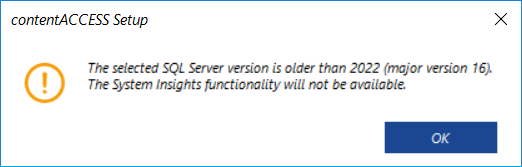
In the next steps the contentACCESS components’ settings will be specified.