
15.3.Opening shortcuts from SharePoint
The user can convert the archived files to shortcuts in the SharePoint archive. This option is generally used for archived items older than 1 or 2 years (it changes from company to company).
During the process, the Administrator can decide which shortcut type he wishes to use: “Keep original“, “HTML shortcut“, or “Modern shortcut.” (For more information about the archive job and the convert archived files to shortcuts option, please, refer to this chapter of the contentACCESS documentation.)
If he uses the “Keep original” option, the files will be converted into shortcuts, but on SharePoint (unless the shortcut can manage the version history), the files will keep the original format, and the user will be able to open them easily.
On the other hand, when the Administrator uses the HTML shortcut type to convert files into shortcuts, the original SharePoint items are replaced with HTML files on the SharePoint site. In this case, the entire version history is deleted, and the user can open the archived item through the actions available on the HTML shortcut.
When the Modern shortcut type is used, the archived file is replaced with a .alink shortcut file. This shortcut uses a Microsoft 365 technology called M365 File Handler, which allows SharePoint to recognize the file type and automatically redirect the user to contentACCESS when the shortcut is opened.
A) Opening HTML shortcuts from SharePoint:
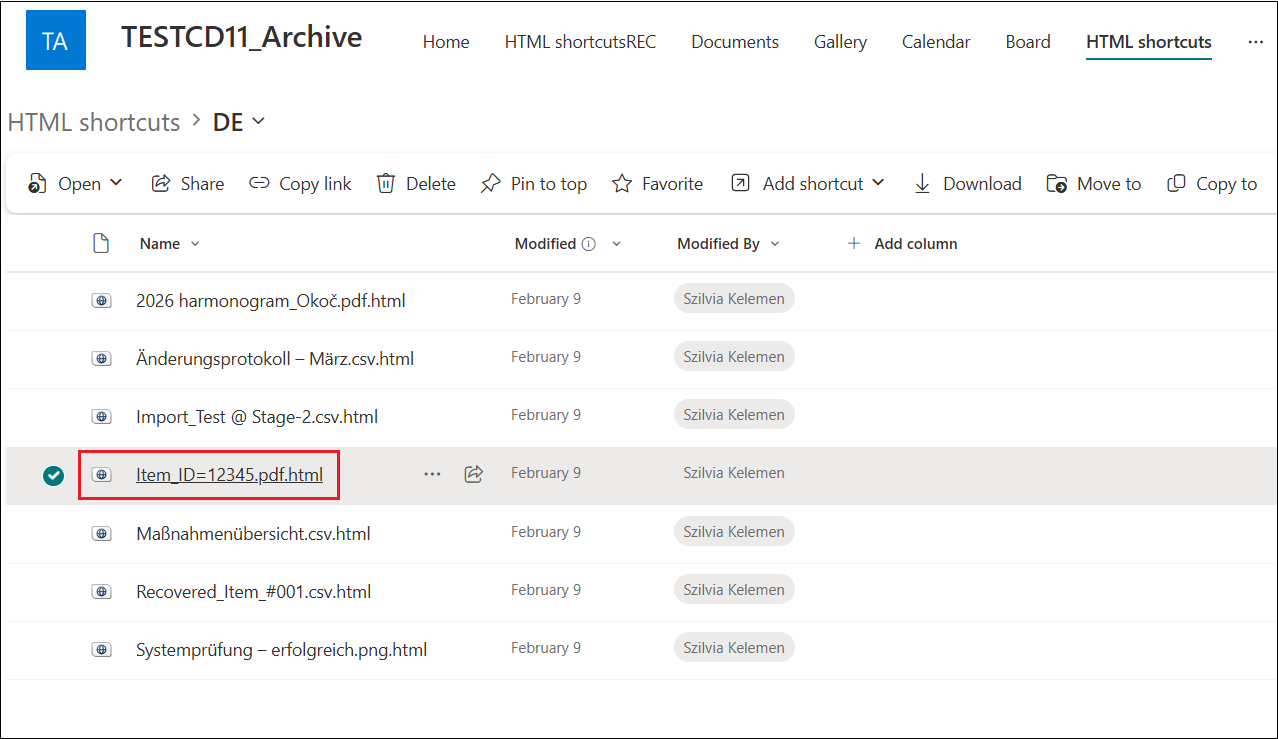
1. Open the shortcut by clicking on the file
2. The preview of the shortcut is opened with some basic information: archivation time, file URL (location of the item on SharePoint), size, and etc. In this window, the following actions are available for the user:
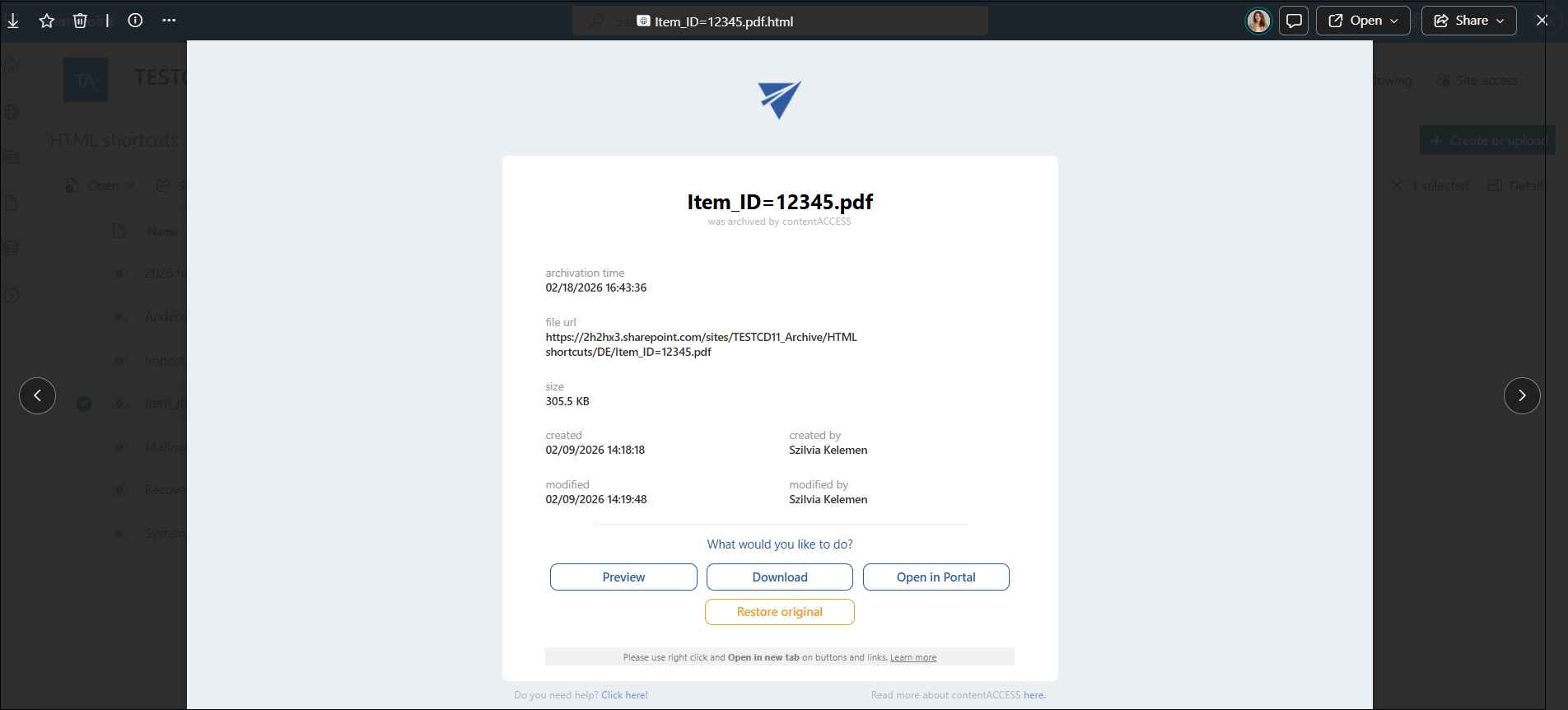
- Preview – you can open the archived file’s preview by using the right click and “Open link in a new tab” on the Preview button. The user will be redirected to the Preview service page, where the original file will be shown. From here, the user can download the original file, save it as PDF, or restore the shortcut.
- Download – this button allows the user to download the original file (instead of the shortcut). It is required to use the right click and “Open in new tab” option on this button as well.
- Open in Portal – the option allows the user to check the archived item in the contentACCESS Portal. On the Portal, the user can see the version history of the selected file, check the item and/or file preview, download the document, or see all other items from the same folder. For more information about the item preview in Portal, refer to the Item list and item preview section of the manual.
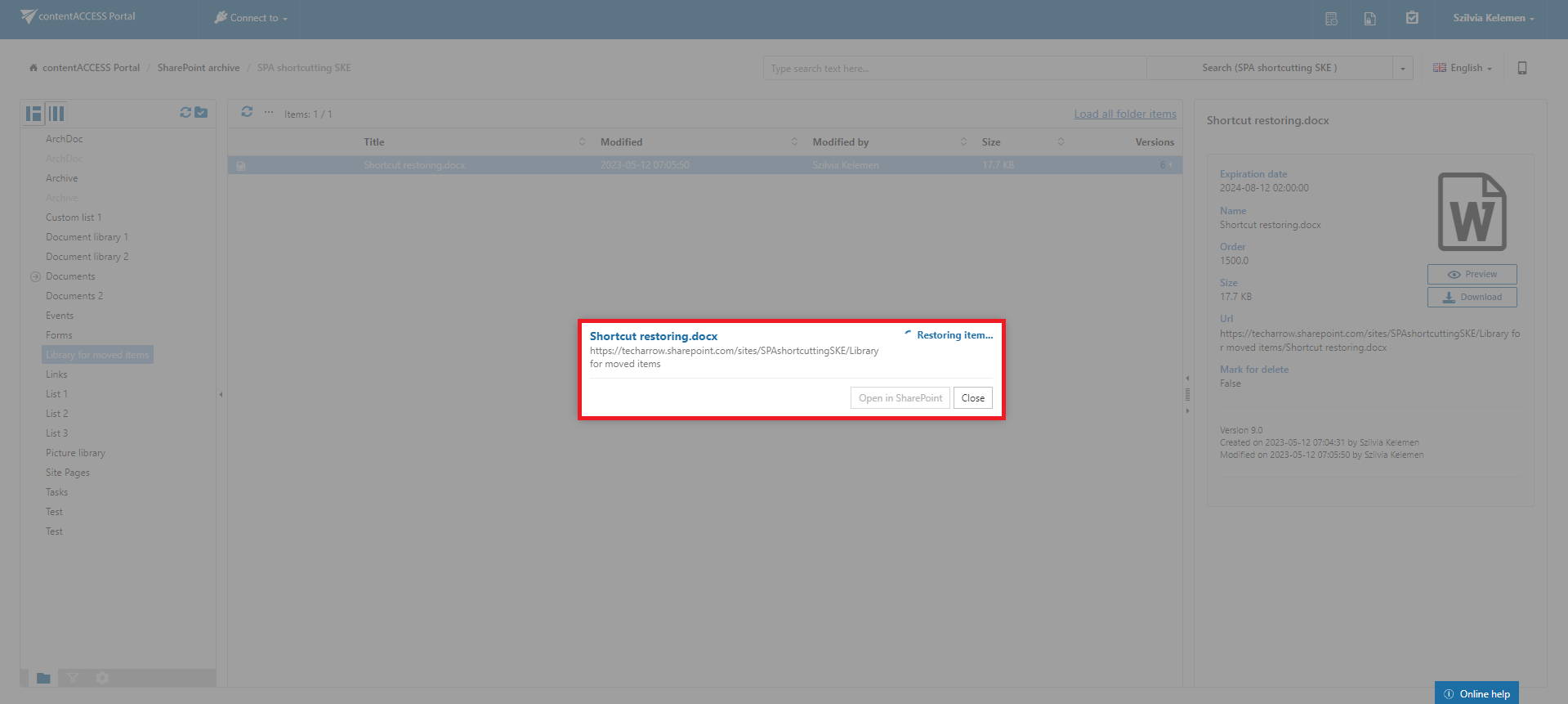
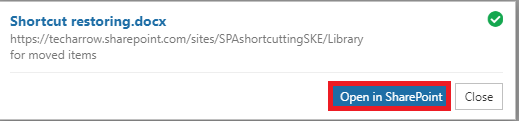
- Restore original – it is also possible to restore the shortcut to the original file from here. In this case, the selected item is opened in the Portal, and the restoring process appears in a pop-up window. When the process is finished, the user can open the restored file in SharePoint (opened in a new tab) or cancel the action and stay on the Portal. This option works similarly to the Recover selected item(s) function in the Portal.
B) Opening Modern shortcuts from SharePoint:
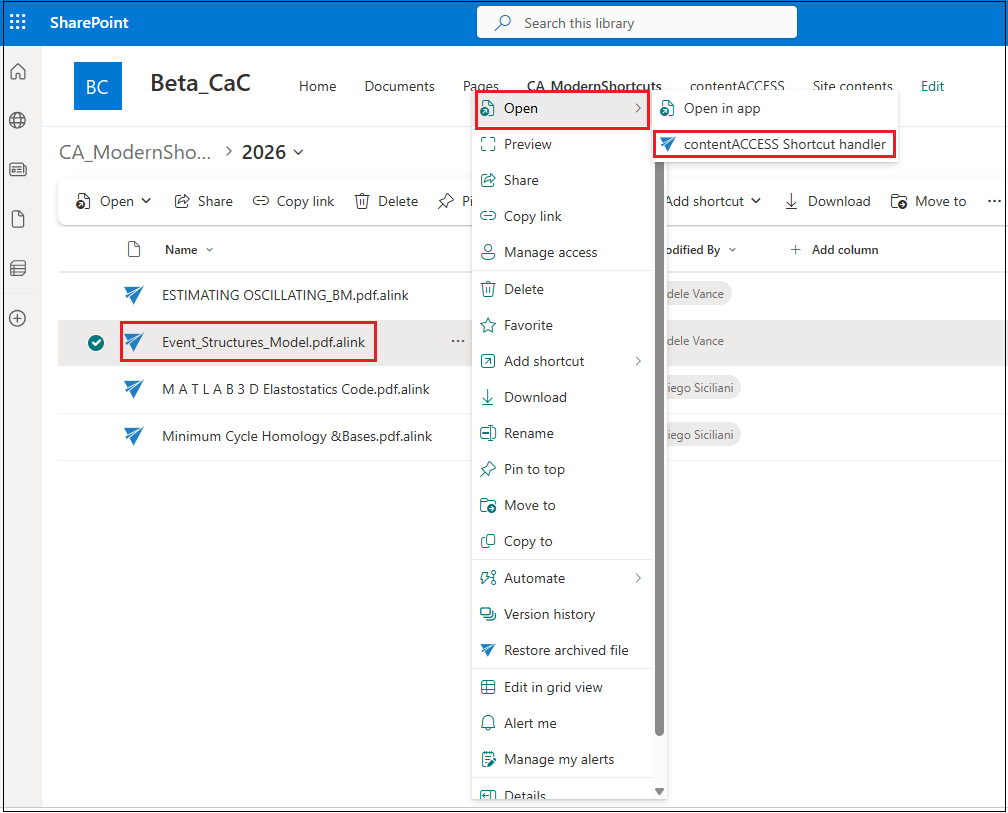
Modern shortcuts in SharePoint can be opened in two ways: simply click on the file name, or use the context menu (… -> Open -> contentACCESS shortcut handler). In both cases, the selected file opens in a new window, where its content is displayed.
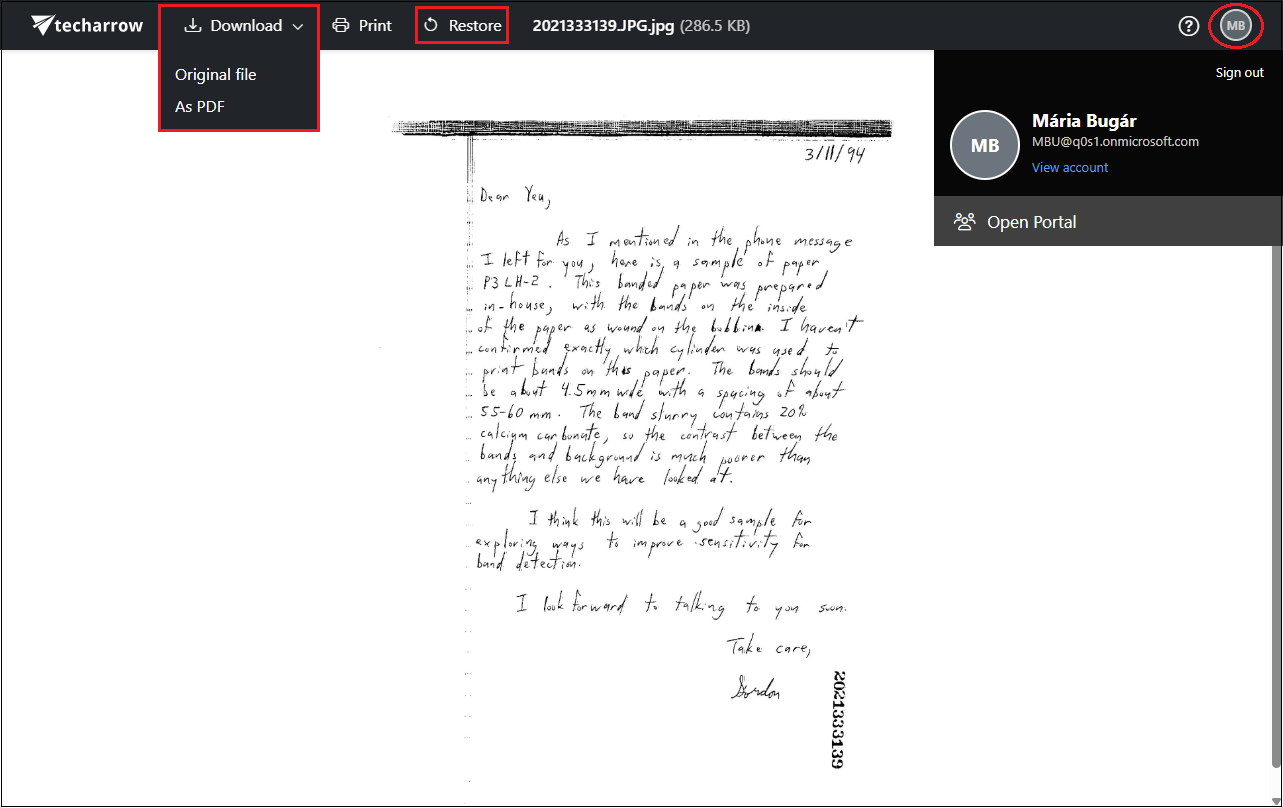
Within the file preview, you can download the original file, save it as a PDF, or restore the shortcut. From the header, you can open the documentation through the question mark, and you will also see the initials of the logged-in user. By clicking on it, you can view the user’s name and email address, access the profile (View account), log out, or open the related item directly in the contentACCESS Portal using the Open Portal option.
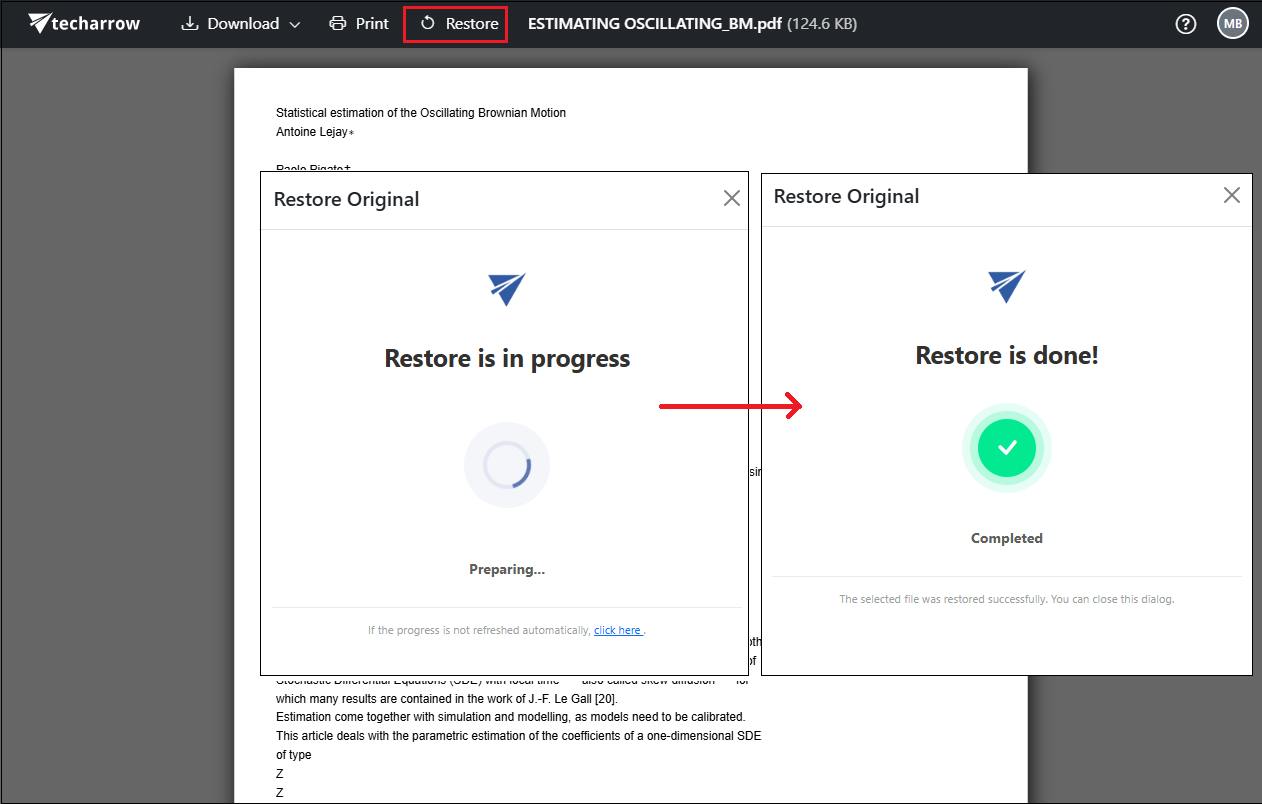
Shortcuts can be restored in two ways: from the preview or from the context menu. When restoring from the preview, the Restore in progress window appears, followed by Restore is done! once the process is complete. After closing the preview, the file will be available again in SharePoint with its original format.
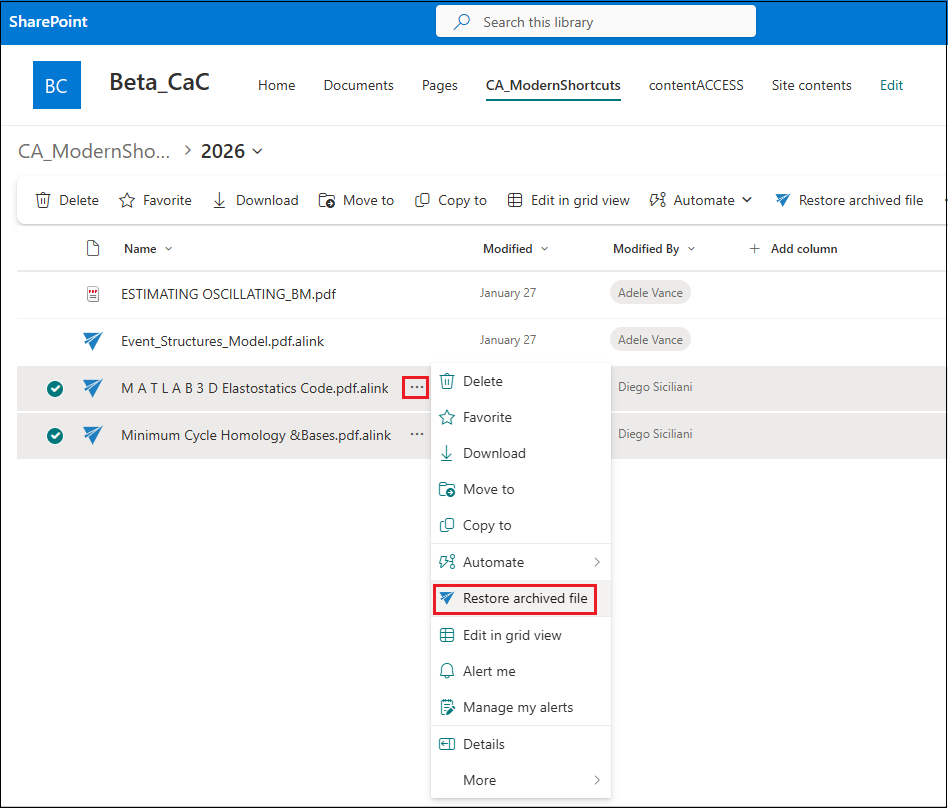
Alternatively, you can select one or more shortcuts from the SharePoint and restore them from the context menu (… -> Restore archived file).
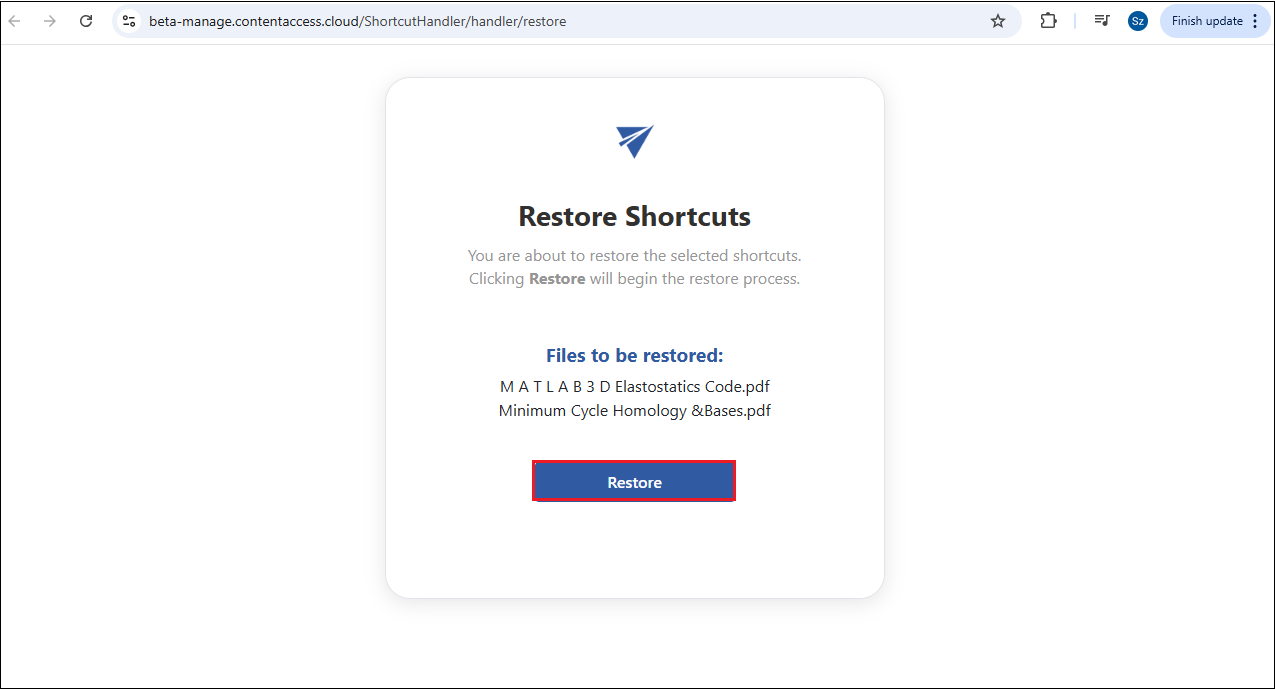
It opens the Restore Shortcuts window, where multiple files can be processed at once. Clicking the Restore button starts the process.
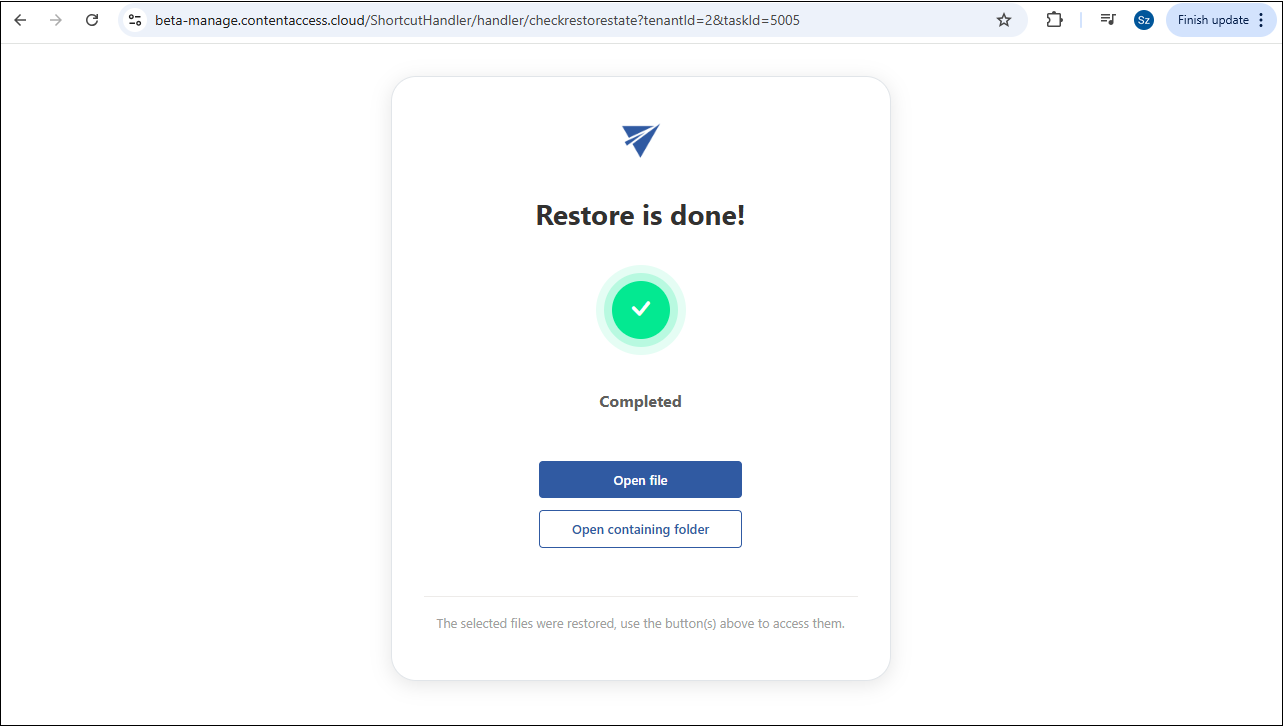
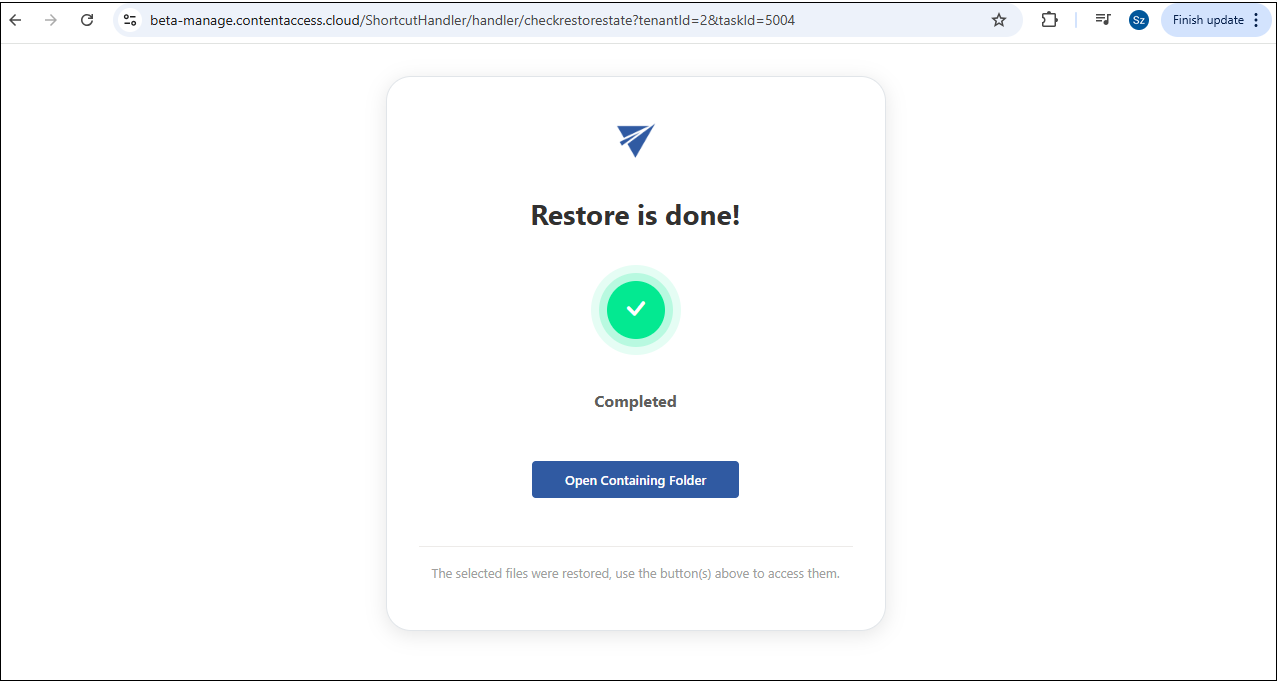
Once finished, two options appear: Open file (available only for single-file restore!) and Open containing folder. The Open file button opens the restored file, while Open containing folder takes you to the SharePoint folder where the file is located.