contentACCESS documentation – version 7.2

  1. Introduction to contentACCESS
    1. Services provided by contentACCESS
    2. Software requirements
      1. contentACCESS prerequisites
  2. contentACCESS setup package
    1. Installation of contentACCESS
      1. EULA
      2. Installation mode
        1. Basic installation mode
          1. License Key
          2. Settings
        2. Advanced installation mode
          1. Installation type
          2. Components
          3. Prerequisites
          4. Options
          5. Service settings
          6. Database connection
          7. contentACCESS Central Administration
          8. Backup Administration for Microsoft 365
          9. contentACCESS Web Services (Proxy)
          10. contentACCESS Portal
          11. Preview service
          12. Central login
          13. Virtual drive
          14. Search service
          15. Search service (V2)
          16. SMTP server
          17. SharePoint shortcut handler
      3. Overview
      4. Installation
      5. Summary
    2. Update of contentACCESS
      1. Managing the index reset or migration
  3. contentACCESS components
    1. contentACCESS Central Administration
      1. Central administration login
      2. contentACCESS Automated single sign on
      3. Central Administration logout
      4. contentACCESS Central Administration user interface
    2. contentACCESS Portal
      1. Logging in to contentACCESS Portal
      2. contentACCESS Portal Automated single sign on
    3. Backup Administration for Microsoft 365
    4. Virtual drive
    5. contentACCESS Web Services (Proxy)
    6. Central login page
  4. contentACCESS Tools
    1. Installing Outlook forms
    2. Legacy email archive connectors
    3. Legacy archive connector for Metalogix Archive Manager Exchange Edition (MAM EE)
      1. Installing Legacy MAM retrieve service and its configuration on the MAM server
      2. Configuration of the MAM server in contentACCESS Central Administration
    4. Legacy archive connector for Email Lifecycle Manager (ELM)
    5. Installing TECH-ARROW’s WinShortcutter
    6. contentACCESS Outlook add-in
      1. Installation of contentACCESS Outlook add-in
      2. How to use contentACCESS Outlook add-in
  5. Tenants in contentACCESS
    1. How to create a new tenant
      1. How to edit and disable a tenant
    2. Tenant limitations
    3. How to provide access to a tenant (adding new tenant administrators)
    4. Tenant administrator invitation types
    5. Tenant associations
      1. Tenant - database association
      2. Tenant - user association
    6. Tenant deletion
  6. General system configurations
    1. Connection
    2. User interface
    3. Users in contentACCESS
    4. Invitations
    5. Roles
      1. Creating roles
      2. Role details
      3. Role assignment
      4. Defining specific permissions of a role assignment
      5. Editing roles, editing role assignments
      6. Role cloning
      7. General use cases of how to create/assign roles
      8. Managing access to contentACCESS objects
    6. Login providers
      1. Login providers’ context menu options
      2. External login provider configuration
        1. Configuring Google OAuth
        2. Configuring Microsoft 365 login provider
        3. Exchange login provider
        4. External AD login provider
      3. Associating an enabled provider with a user login
      4. contentACCESS users in third party systems
    7. System
    8. Licensing
      1. How to activate your license key
    9. Notifications
    10. System logs — how to find out possible misconfigurations / reasons of potential system/job failures
    11. Configuration auditing
    12. Archive auditing
    13. Distributed environment in contentACCESS — Clusters
    14. Statistics
    15. Legal hold
    16. Task runner
    17. Indexing
    18. SMTP Servers
    19. SMTP Mappings
    20. SMTP Rules - selective journaling
    21. Sharing job
    22. Sharing settings
    23. How to create/configure databases — All databases
  7. Common features
    1. Databases
    2. Schedules
    3. Retentions
    4. Storages
      1. Amazon S3
      2. Wasabi storage
      3. Google drive storage
      4. Datengut storage
      5. Azure storage
      6. Disk storage
      7. HybridStore
      8. Perceptive storage
      9. Kendox storage
    5. Exchange connections
      1. Exchange performance settings – turning off the Exchange throttling policies
      2. Mixed Exchange environments in the Email Archive system
    6. Importing contentACCESS configurations from files
      1. Manual import of Exchange servers/groups/mailboxes to the contentACCESS Address book
      2. Importing File Archive root folders to be archived
  8. Creating new jobs in contentACCESS
  9. Jobs’ page, jobs’ context menu
  10. Filtering in jobs
  11. File Archive
    1. Introduction to File system archive
    2. File archive settings
    3. File archive Databases
    4. File archive System settings
    5. File archive Retentions
    6. File archive Storages
    7. Root folders
    8. Aliases
    9. File archive Schedules
    10. Provisioning settings and managing access to contentACCESS Portal
      1. File system provisioning job description
    11. Remote agents (file archive)
    12. Global rules (remote file archive)
    13. Configuring aliases
    14. Configuration of jobs available in contentACCESS File Archive
    15. Configuration of File archive retention changer job
    16. Configuration of File system archive job
      1. File system archive job description
    17. Configuration of a File system restore job
      1. File system restore job description
    18. Configuration of File system recovery job
      1. File system recovery job description
    19. Configuration of Delete job in File archive
      1. File system delete job description
    20. Configuration of File system shortcut synchronization job
      1. File system shortcut synchronization job description
    21. Configuration of Remote shortcutting job
      1. File system remote shortcutting job description
    22. Active/inactive documents in File system archive
  12. Email Archive
    1. Important settings before creating an Email Archive job
    2. Database settings
    3. Email archive System settings
      1. Hybrid exchange settings
    4. Email archive Provisioning settings
      1. Email archive provisioning job description
    5. Retention settings
    6. Shortcuts in email archiving
    7. Storing of archived emails
      1. LoboDMS storage
    8. Creating email archive schedulers
    9. User experience
      1. Exchange 2013+: contentACCESS MailApp in OWA 2013+ or on MS Outlook 2013+ desktop version
      2. Exchange 2010: OWA 2010 integration
    10. Address book objects
      1. Adding address book objects manually
      2. Removing groups and mailboxes from the Address book
    11. Granting access rights for mailbox users and explicit users to view the mailbox archive
      1. Creating contentACCESS Portal users (option 1)
      2. Manage access to a mailbox archive (option 2)
    12. Database and store assignment in email archiving
      1. How to assign database, storage and index zone to an Exchange group?
      2. How to assign database, storage and index zone to a mailbox?
      3. How to move data from source database/storage into a second (target) database/storage?
    13. contentACCESS MailApp access
    14. Remote agents (email archive)
    15. PST import
      1. PST import job description
    16. Creating Email archive jobs: archive, restore, recovery, delete, mailbox move, shortcut synchronizaion, shortcut repair
    17. Email archive job
      1. Email archive job configuration
      2. Email archive job description
      3. Email archive journal processing
        1. Recommendations after turning on journal archive
      4. Archiving of rights protected messages
    18. Email archive retention changer job
    19. Email restore job
      1. Email restore job configuration
      2. Email restore job description
    20. Email recovery job
      1. Email recovery job configuration
      2. Email recovery job description
    21. Configuration of Delete job in Email archive
      1. Email delete job description
    22. Journal post processing job
      1. Journal post processing job configuration
    23. Mailbox move job
      1. Mailbox move job configration
      2. Mailbox move job description
    24. Shortcut synchronization job
      1. Shortcut synchronization job configuration
      2. Email shortcut synchronization job description
    25. Shortcut repair job
      1. Shortcut repair job configuration
      2. Email shortcut repair job description
    26. Public folder archiving
      1. How to configure a job to archive public folders
      2. Public folders in the contentACCESS Portal archive
      3. User permissions to public folders
      4. Public Folder archiving in mixed Exchange environments
    27. Access to private emails and archiving them
    28. SMTP archiving
  13. SharePoint archive plugin
    1. SharePoint Archive settings
    2. SharePoint archive System settings
    3. Site connections in the SharePoint archive
    4. SharePoint archive Provisioning settings
      1. SharePoint provisioning job description
    5. Shortcut configuration in SharePoint
      1. contentACCESS File Handler for Windows
    6. SharePoint archive Address book
    7. SharePoint Archive job configuration
      1. SharePoint archive job description
    8. SharePoint archive retention changer job configuration
    9. SharePoint recovery job configuration
      1. SharePoint recovery job description
    10. SharePoint shortcut repair job configuration
    11. Configuration of Delete job in SharePoint archive
      1. SharePoint delete job description
    12. SharePoint Publishing job
      1. SharePoint publishing job description
    13. SharePoint in the contentACCESS Portal archive
  14. OneDrive archive
    1. OneDrive Archive job configuration
    2. OneDrive archive Jobs
  15. GDPR plugin
    1. GDPR Settings
      1. GDPR Databases
      2. GDPR Schedules
      3. GDPR Index zones
    2. GDPR Processing
      1. GDPR File system settings
      2. GDPR Exchange settings
      3. GDPR Applications
      4. GDPR Jobs
        1. GDPR File system job
          1. GDPR file system job description
        2. GDPR Exchange job
          1. GDPR Exchange job description
        3. GDPR Application job
          1. GDPR application job description
  16. Teams archive
    1. Teams archive databases
    2. Teams archive System settings
    3. Teams archive Provisioning settings
    4. Shortcut configuration in Teams archive
    5. Teams archive Address book
      1. Removing objects from Teams archive Address book
    6. Teams archive Licensing
    7. Teams archive Jobs
      1. Teams archive job
      2. Teams compliance archive job
        1. Comparison between the Teams archive and Teams compliance archive jobs
      3. Teams chat archive job
      4. Teams chat compliance archive job
        1. Comparison between the Teams chat archive and Teams chat compliance archive jobs
      5. Teams archive recovery
        1. Teams recovery job description
      6. Configuration of Teams archive retention changer job
      7. Configuration of Teams chat archive retention changer job
      8. Configuration of Delete job in Teams archive
        1. Teams archive delete job description
      9. Configuration of Delete job in Teams chat archive
  17. Custom plugins
    1. Email management job configuration
    2. Storage replication plugin
    3. Sharing plugin
    4. Datengut plugin
    5. Email synchronizer plugin
    6. Categorize to Public folders plugin
    7. LoboDMS plugin
  18. ThreatTest
    1. ThreatTest configuration
      1. ThreatTest Databases
      2. ThreatTest System settings
      3. ThreatTest Schedules
      4. ThreatTest User experience
      5. ThreatTest Statistics
      6. ThreatTest Job
    2. Using ThreatTest App
  19. officeGATE
  20. contentACCESS Mobile
  21. Virtual drive configurations
  22. Teams application
  23. Application settings
  24. Terms of use
  25. FAQ
    1. Download sample for the file to be imported does not work
    2. Archiving is not working if MAPI is set to communicate with the Exchange server
    3. Virtual drive is still appearing after the uninstall
    4. Outlook forms problems
    5. Unable to open shortcuts of archived files on the server side
    6. Samples are not shown using 'Show sample" option in the Import dialog
    7. Do I need to create separate tenants for file archiving and email archiving
    8. What is the recommended database size for email, file and Sharepoint archiving
    9. The TEMP folder is running out of space when archiving big files
    10. The attachment could not be opened
    11. After updating Exchange 2013, the EWS connection might not work in contentACCESS
    12. If Windows authentication is not working in contentACCESS and an alias was created for contentACCESS
    13. contentACCESS Outlook add-in certificate issue
    14. Prerequisites for Microsoft 365 archiving
    15. How to configure contentACCESS for Microsoft 365 with limited permissions
    16. PowerShell scripts for setting up Email archive
    17. How to reconfigure your email archive to use modern authentication for PowerShell
    18. Solution for Outlook security patches
    19. Solution for Outlook security patches through GPO
    20. Solution for indexing PDF files
    21. Microsoft 365 SuperUser mailbox configuration
    22. Microsoft 365 journaling
      1. Configuring Microsoft 365 journal forwarding through third-party Exchange Online Protection
    23. Organizational forms
    24. Multifactor authentication
    25. Region setting
    26. contentACCESS MailApp installation issue
    27. Azure app registration for Microsoft 365 archiving
      1. Grant permissions for Email archive
      2. Grant permissions for the OneDrive archive
      3. Grant permissions for the SharePoint archive
      4. Grant permissions for Teams archive
      5. How to request access to Microsoft Protected API
    28. Shortcut Handler Azure App registration
  26. Troubleshooting

13.5.1.contentACCESS File Handler for Windows

This section describes how to open modern shortcut files (.alink) using Windows File Explorer, and how to install the required tool that enables this functionality on your local machine.

Introduction
.alink files are contentACCESS shortcuts used in Microsoft 365 SharePoint, OneDrive, and Teams when rarely used documents are offloaded from Microsoft 365 to contentACCESS Archive. the original document is replaced by a small shortcut file (the .alink).
In Microsoft 365, your organization registers a contentACCESS file handler in the tenant so that opening an .alink directly in SharePoint/Teams/OneDrive correctly redirects you to the contentACCESS Shortcut Handler web service.
However, if you download an .alink file to your PC, or if you use OneDrive to synchronize libraries locally, Windows does not know what to do with .alink files by default. The tenant-side handler only works inside Microsoft 365.
The contentACCESS File Handler for Windows solves this by registering a Windows file association for .alink. When you open an .alink on your PC, it mimics the Microsoft 365 behaviour and redirects you to the contentACCESS Shortcut Handler service. That service then provides:

  • Document preview
  • Document restore
  • Document download

How to download and install the file handler
1. Download contentACCESS.FileHandler.Win.exe application from the Download Center -> Tools.
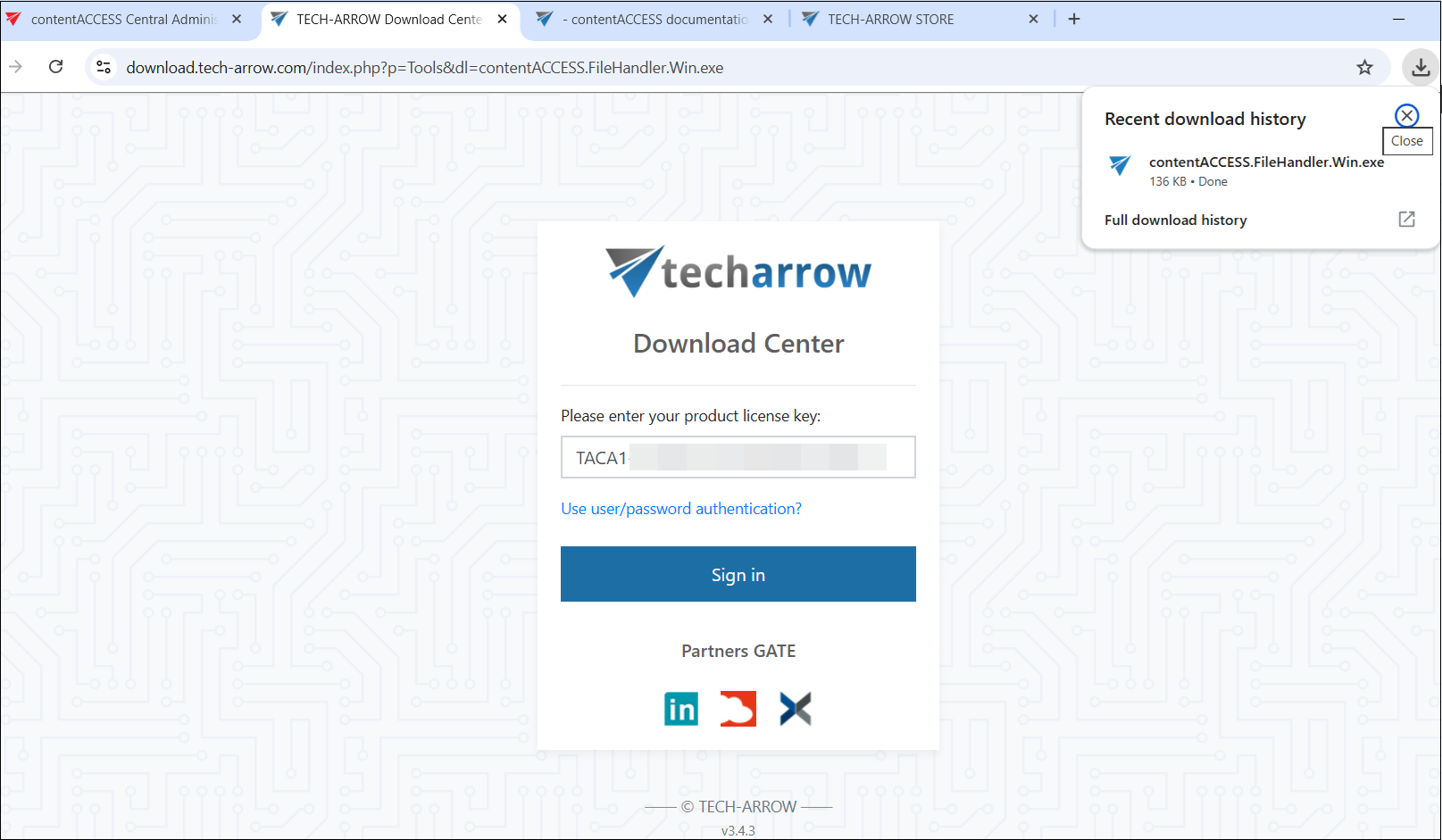
Note:If your organization deploys this via GPO/Intune/SCCM, you may not need to do anything manually.

2. Start the application, and on the first screen, select Install and press Enter. This application installs the handler for the current Windows user.
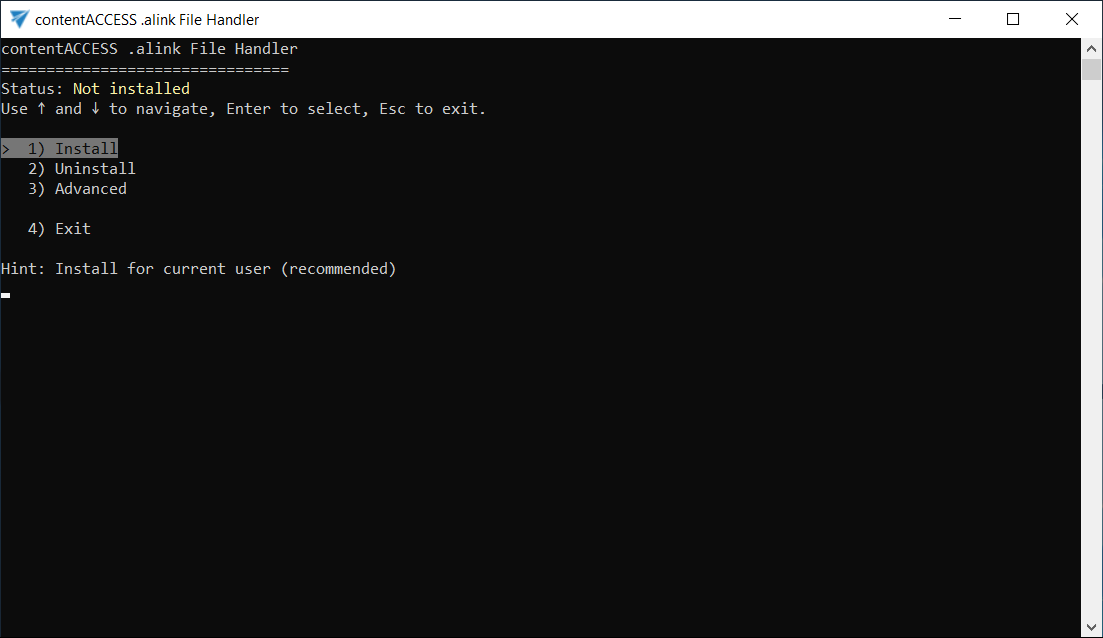
Note:The application is copied into your user profile under: C:\Users\\AppData\Local\TECH-ARROW\contentACCESS.FileHandler.Win

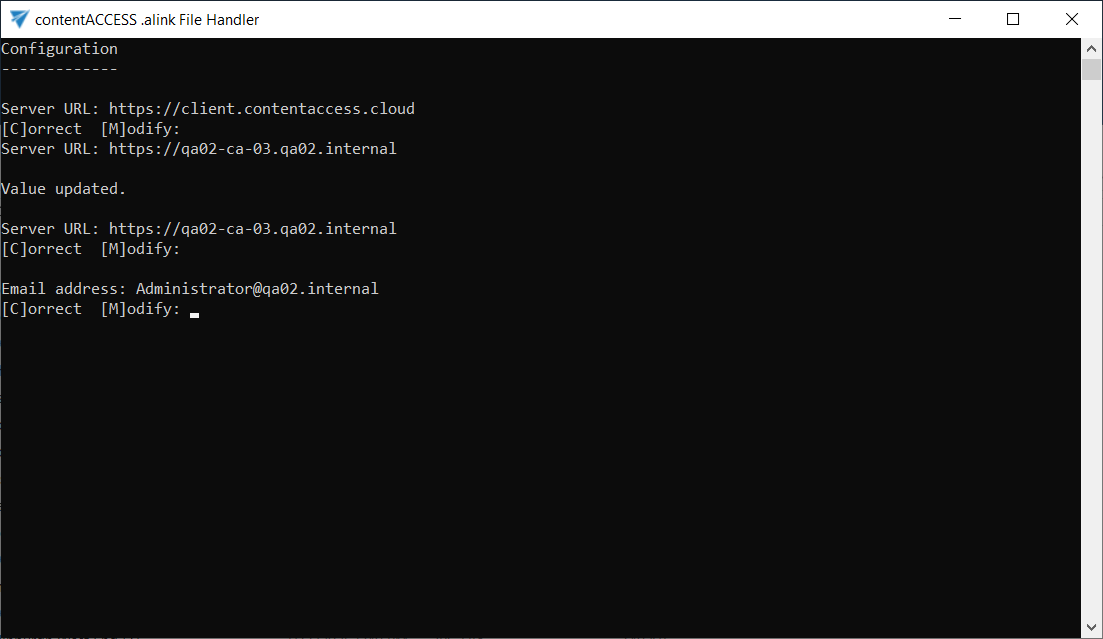
3. After installation, the app asks you to configure two values: server URL and email address. For each value you can choose: [C]orrect (keep the value) or [M]odify (enter a new value).
First, you need to configure the server URL. By default, you will see the current server URL (it is typically https://client.contentaccess.cloud). If you wish to keep it, choose [C]orrect.
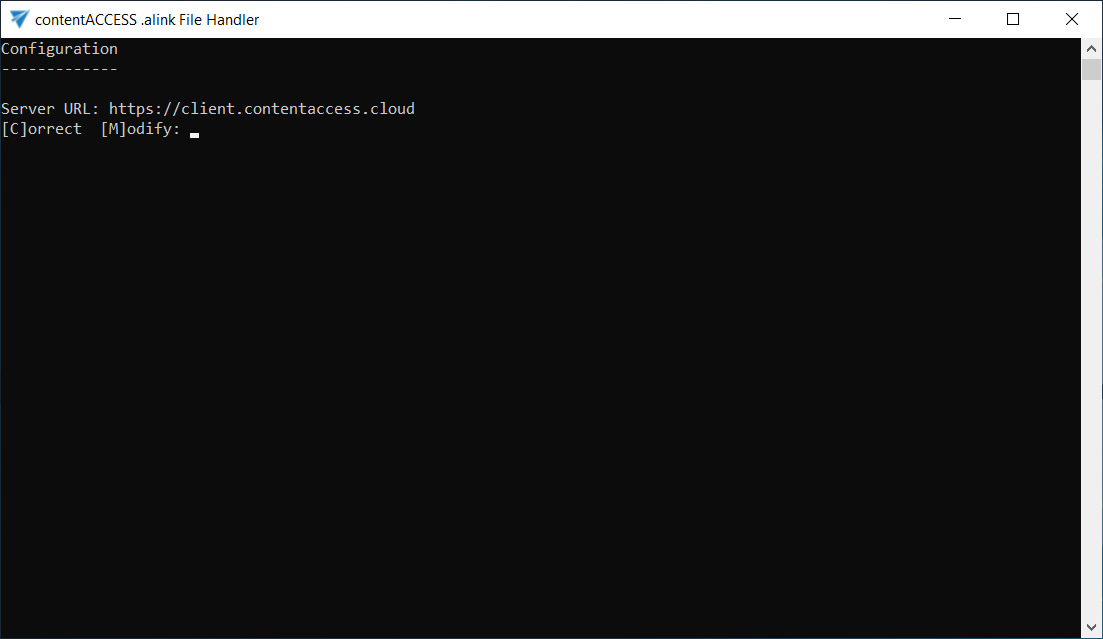
If you would like to use a different URL, choose [M]odify, then enter the desired address and press Enter. If it is valid, a “Value updated” message appears, and the new value is applied.
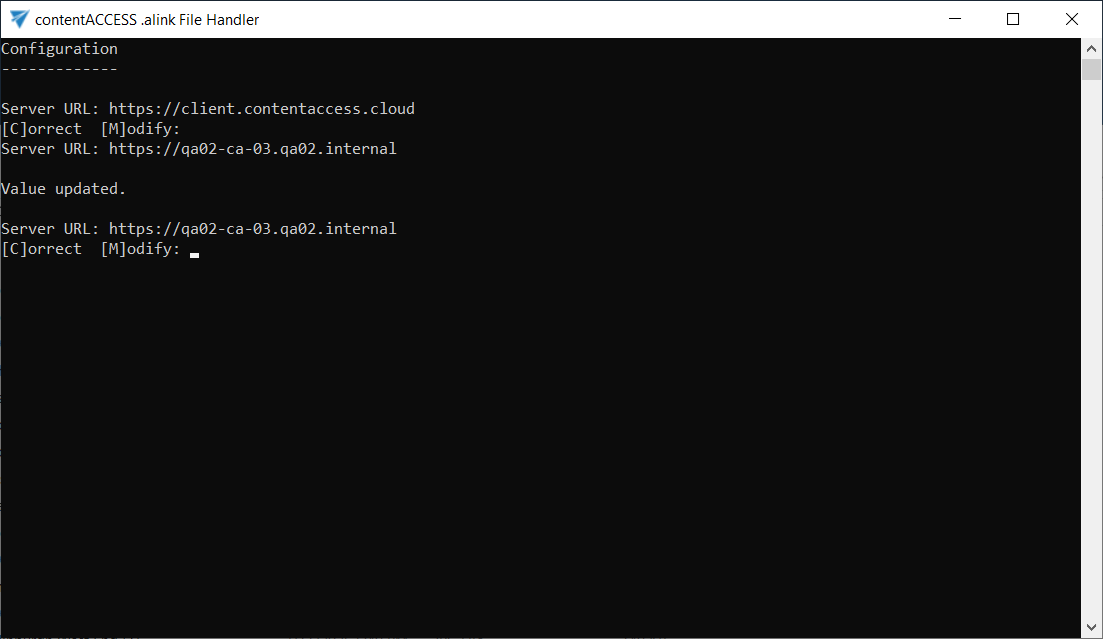
Press [C]orrect, and you will be moved to the next step to configure the email address. Here, you can again choose to keep the displayed email address by selecting [C]orrect or change it by selecting [M]odify.
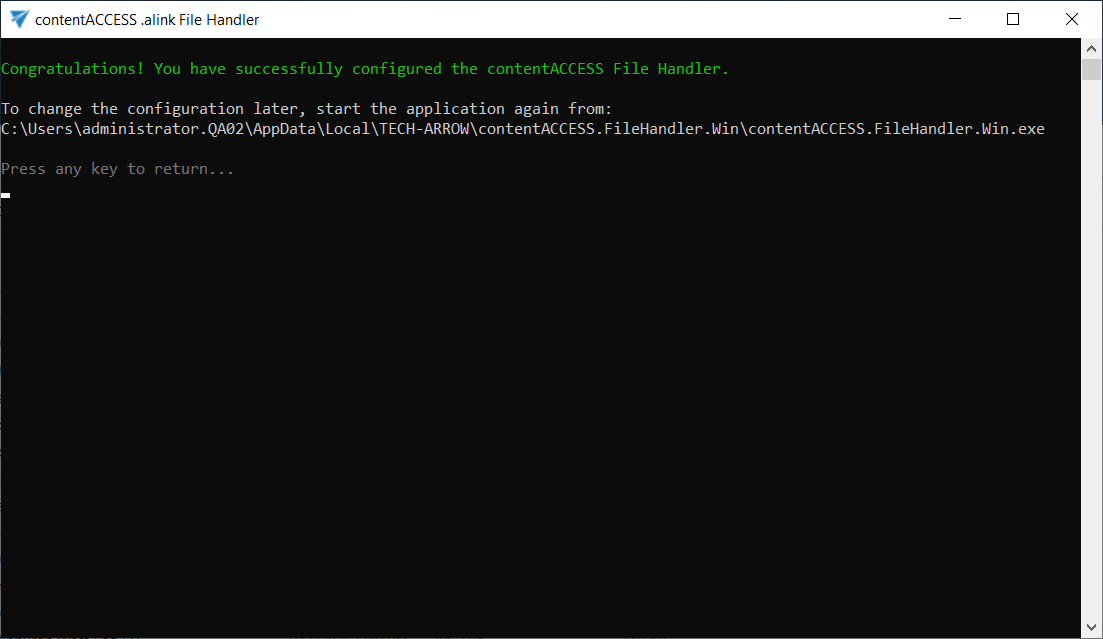
4. When finished, a success message will appear, showing where the application is installed so you can run it again later.
How to use the contentACCESS File Handler for Windows
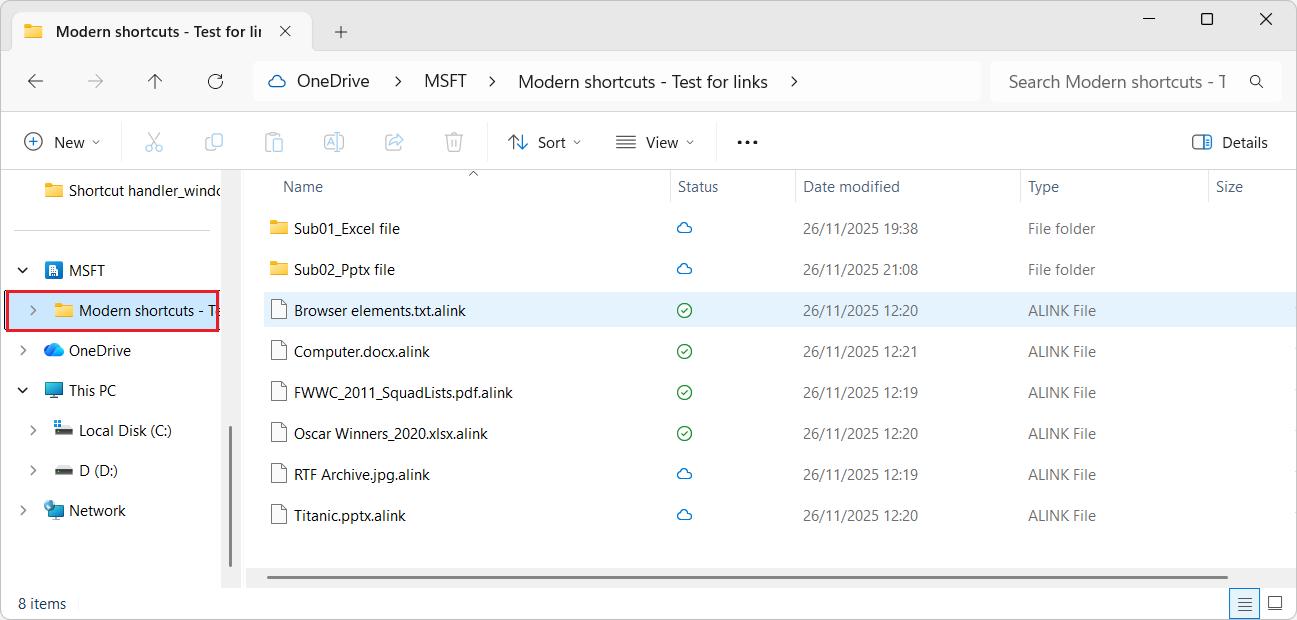
Once you installed and configured the requested values, locate an .alink file on your local machine (for example, on a OneDrive-synchronized folder), and double-click the selected file. Your default browser would open and redirect you to the contentACCESS Shortcut Handler service. You can find detailed information about the contentACCESS Shortcut Handler service and its functions in the contentACCESS Portal manual, with separate chapters for SharePoint and OneDrive shortcuts.
Change configuration later or uninstall the application
If you need to change the configuration later, simply start the application again. It is typically copied into your user profile under: C:\Users\\AppData\Local\TECH-ARROW\contentACCESS.FileHandler.Win\contentACCESS.FileHandler.Win.exe.

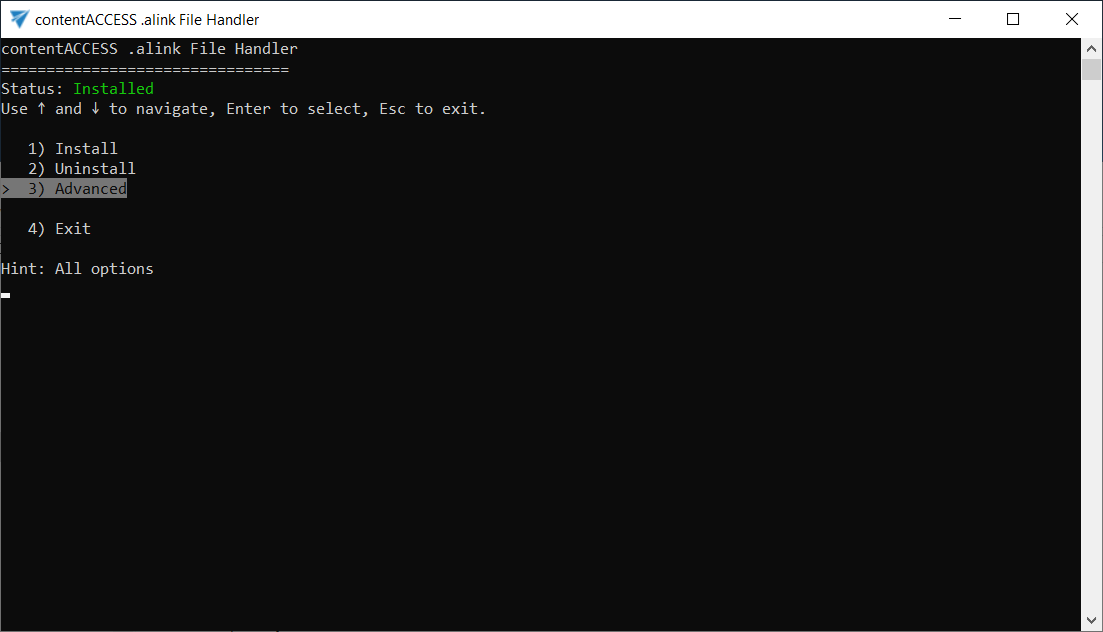
From the menu, choose Advanced first, then select Configure.
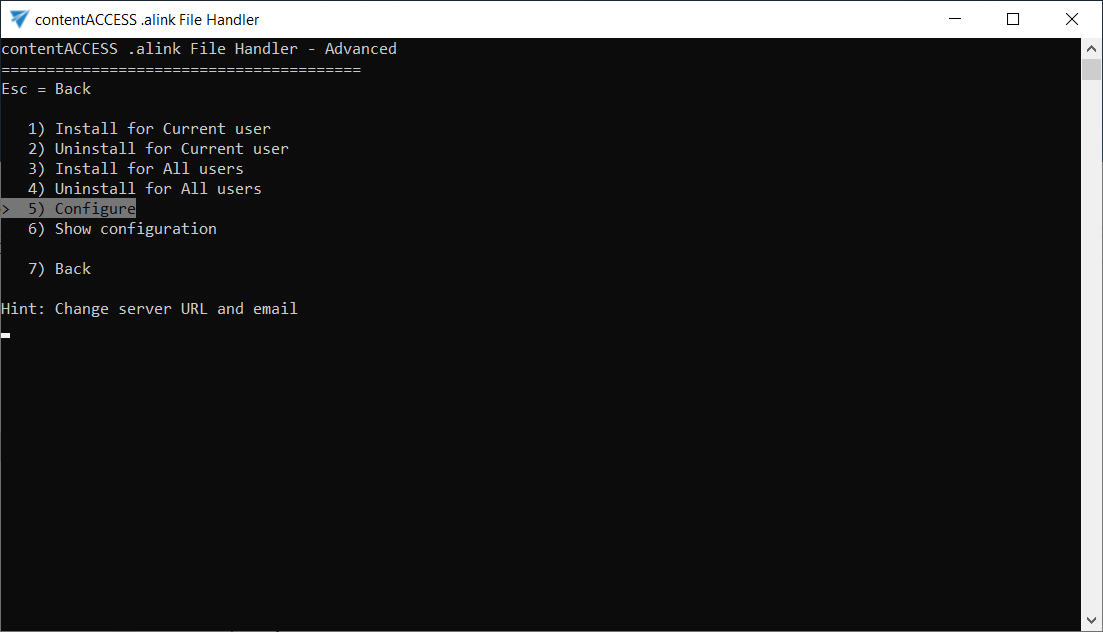
The Configuration page appears again, where you can confirm or modify the server URL and Email address.

You can also uninstall the application by selecting the Uninstall option from the menu.
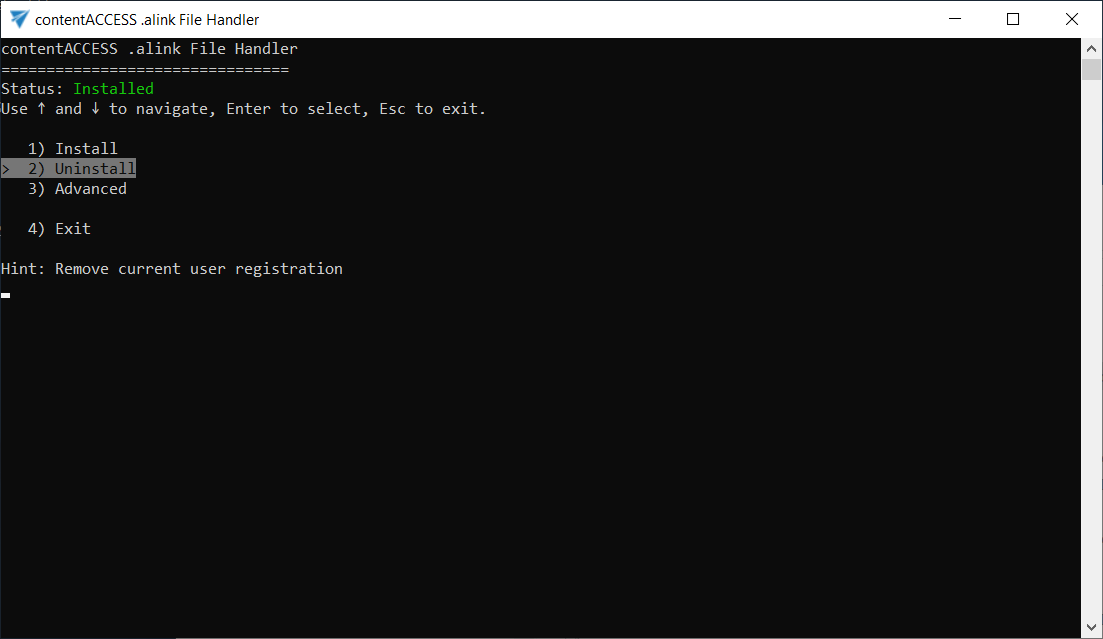
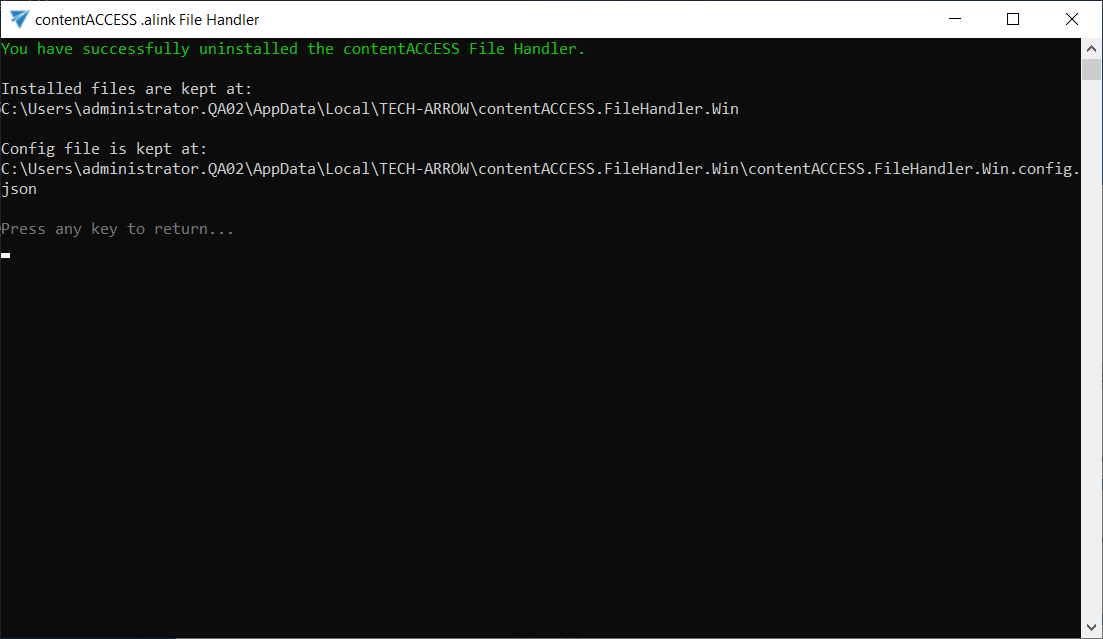
This removes the Windows registration for .alink for your current user, but it will keep the installed and config files in their installation location.
Troubleshooting
Here are some common issues you might encounter when using .alink files, along with suggested steps to resolve them:

  • Nothing happens when I open an .alink file – if you encounter this issue, run the application to verify the status (it should be Installed. If it shows Not installed, you need to run Install.
  • I get redirected to the wrong server – in this case, you need to reconfigure the server URL. Use the Advanced option to set the proper server URL.
  • Windows does not update the icon immediately – it may take time to display the icon or you need to restart the Windows Explorer / sign out and in again.
  • .alink files are opening with the wrong application (e.g. PDF viewer) – this can happen if a different default app was selected by mistake. To fix this, go to Default apps in Windows, search for .alink, and select the contentACCESS File Handler application. If needed, you can manually locate it at: C:\Users\[USERNAME]\AppData\Local\TECH-ARROW\contentACCESS.FileHandler.Win\contentACCESS.FileHandler.Win.exe
Yes No Suggest edit
Help Guide Powered by Documentor
Suggest Edit